 Figure 2-1
Figure 2-1
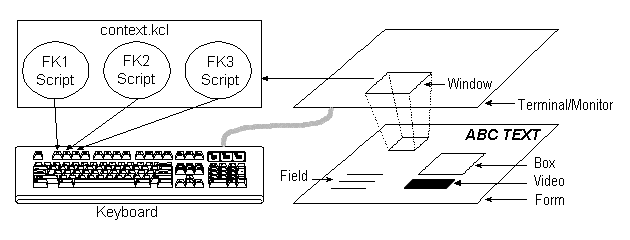
Data exchange takes place in the form's foreground, which consists of fields. Many fields can be defined on a form, and a field can consist of many field lines.
Text, lines, and boxes constitute the background of a form. The form background does not play an active role in data exchange. Rather, it provides a meaningful context for data input and output.
A form is always viewed through a window. A window must always fit on the screen, however, a form can be of any size. It can even be larger than the screen. When a form is larger than the window used to show it, it can be scrolled under the window to bring different parts of it into the visible area under the window. A form can have more than one window onto it and several windows onto the same form can be made to appear on the screen at one time.
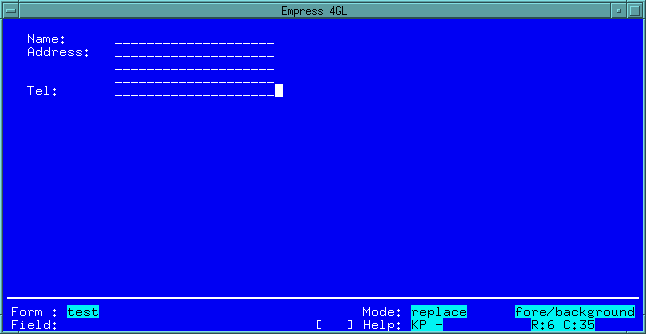 Figure 2-2 Example of a form
An example of a form is shown is the figure above. The form is created using the Form Editor through the Form Manager.
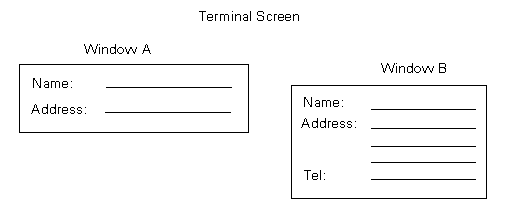
Figure 2-3 The form as it appears in windows
In the figure above, two windows in the same form are shown. These windows are deliberately smaller than the form to illustrate that different windows can give different views onto a form.
When a window is defined, it is always given a specific location and size. However, a window can be moved to any position on the screen or resized to become larger or smaller by using the 4GL's script language commands.
An application can have many windows that may be shown and removed as required. More than one window can appear on the screen at one time. They may be physically separated from one another, or they may overlap. Overlapping windows are ordered from top to bottom, with the most recently displayed window on top. The top window is always completely visible.
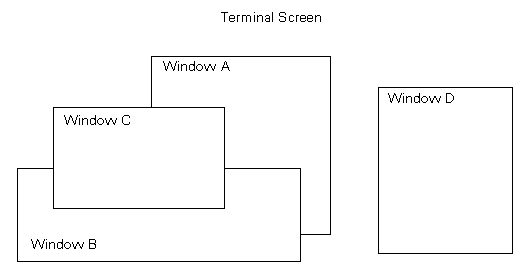
Figure 2-4 Four windows in a screen
In the figure above, four windows are shown on a screen. Windows A, B and C overlap, and of these, only window C is fully visible. Window A is obscured by the other two windows, which means that it appeared first. Window B appeared next, and window C appeared last. Window D is fully visible and stands apart from the other three windows - it may have appeared at any time.
Windows are defined in the windows section of an application.
let "WW"@"FF" = "John Longname";
"Line one
Line wo crolls over and around"Then it would appear like this:
Fields have characteristics, collectively called the field definition, that control their behaviour.
Here is a list of field characteristics which you can set through the Form Editor:
Table 2-1: List of Field Characteristics
| Characteristic | Default Value |
| field name | Next available field number |
| video type | Normal |
| fill flag | No fill |
| field delimiter | None |
| fixed size field flag | No restriction |
| left/right entry flag | Left |
| edit pattern | None |
| domain name | None |
| window | None |
| n | for a normal field - that is, for unlimited data input. |
| f | for a fixed length field. Any character typed after the end of the field overwrites the last character. |
| b | for a fixed length field. Any character typed after the end of the field is ignored and a beep is issued. |
| a | for a fixed length field with auto skip. Once a character is typed into the last position of the field, the field is exited and the next field is entered. |
Key contexts are defined in the Key Table of the Application Editor and are associated with windows in the key context field of the Window Table.
The contexts are pushed onto the key stack in reverse order, so the context listed first becomes the context on the top of the stack.
When a key is pressed, the 4GL searches each context beginning with the one on the top of the stack. The first definition of the key that it finds is run.
Conversely, a window with an empty key context associated with it will have no active key-driven functions available unless you define a global key context.
Subscripts may be written to act as procedures or functions that can be called by any of the above scripts.
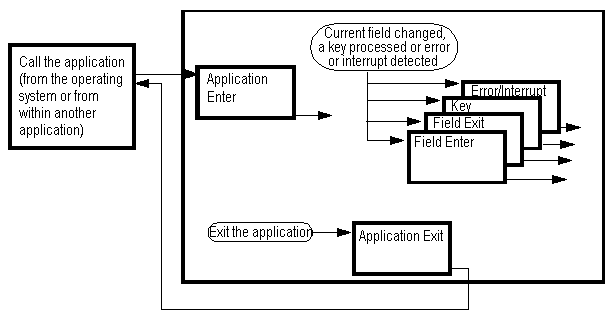
Figure 2-5 Flow of Control through Scripts
This diagram depicts the high-level flow of control within an application. The application begins with the enter script and ends with exit script, each of which is executed only once. The application enter script should pass control to a window, by making that window the "current" window. If no window is made current by the application's enter script, the 4GL will make the first window in its alphabetically sorted list of windows current whether it is showing or not.
Within a window, execution is governed by the following factors:
You may quit the application by running an exit command or by pressing the Quit key unless it has been redefined by the application. At this time, before the application actually finishes, the exit script is run.
local

   char name;

   integer age;

end;
let number = 1;

while (number << 100)

   let number = number+1;

end;
select from "table"

   where "table"."attribute" = "window"@"field";
call current_window ("window_name", "field_name");
The groups are:
Warning: Do not name variables, subscripts or user defined functions after any of the keywords in the name column of the following tables.
| Name | Description |
| parameter | define variable passed to the script |
| external | define external variable |
| global | define global variable |
| local | define local variable |
| Name | Description |
| call | call a function or procedure |
| call application | calls an Empress 4GL application |
| call emprepwr | call an Empress Report Writer script |
| display | flush output to the display |
| disable interrupt | disable trapping of system interrupt signals |
| enable interrupt | reactivate trapping of system interrupt signals |
| exit | leave the application |
| export | export Empress 4GL data structure |
| if | branch depending on condition |
| import | import Empress 4GL data structure |
| let | assign a value |
| on error | trap error and respond |
| on interrupt | trap interrupt signal and respond |
| return | leave a function, optionally returning a value |
| switch | branch depending on value |
| while | repeat while a condition is true |
| Name | Description |
| cancel | cancel or rollback the current transaction |
| check | validate compatibility with attribute |
| close | close a table |
| commit | commit the current transaction |
| define select | define a select without executing |
| delete | delete record from table |
| disable | disable update operations on context |
| enable | enable update operations on context |
| end_select | remove a context |
| insert | insert record into table |
| lock | lock a table |
| next_group | get the next group from context, don't backup at the end of the context |
| next_rec | get next record from context |
| next_record | get the next record from context |
| open | open a table |
| prev_group | get the previous group from context, don't go forward at the end of the context |
| prev_rec | get previous record from context |
| prev_record | get the previous record from context |
| rollback | rollback a transaction |
| savepoint | set save point in transaction |
| select | select from tables giving a context |
| select context | refresh a predefined context |
| start transaction | start a transaction |
| undefine | cancel a define select |
| update | update record in table |
| Name | Description |
| attr_update | update an attribute with a value |
| attr_value | return the current value of an attribute |
| beep | make the terminal beep |
| check_field | check the validity of data in a field |
| clear_fields | clear the fields in a window |
| clear_save_value | clear saved value |
| clear_status | clear status window |
| compare_save_value | compares saved field with current field value |
| current_field | make a field current |
| current_field_name | return the name of the current field |
| current_field_number | return the number of the current field |
| current_field_update | update the current field with a value |
| current_field_value | return the value of the current field |
| current_field_video | change the video of the current field |
| current_window | make a window current |
| current_window_name | return the name of the current window |
| debug_message | show a message in a window and pause |
| define_group_multi | associate a context with a window for multiple record displays generated by SELECT statements with the GROUP BY option. |
| define_multi | associate a context with a window |
| display_page | display a page in a multi-record display |
| empsql | invokes the Query Language interface |
| error_message | enter error state and show a message in a window |
| error_window | associate a window and field to display the error messages |
| field_help_window | display field help window through a command |
| field_mode | change the mode of a field |
| field_update | update a field with a value |
| field_value | return the current value of a field |
| field_video | change the video of a field |
| get_save_value | return the saved value of a field |
| info_message | show a message in a window and continue |
| info_window | associate a window and field to display the message |
| key_context_name | query the stack for a key context name |
| key_name | return the key name for a key label |
| key_script | execute a key script |
| largest_field_number | return the size of a multiple field |
| mouse_field_name | return the mouse field name |
| mouse_field_number | return the mouse field number |
| mouse_key_down | return mouse key pressed data |
| mouse_location | return the current mouse location |
| mouse_window_name | return the mouse window name |
| move_window | move a window on the screen |
| next_field | go to next field of the current window |
| next_line | get next line in multi-record display |
| next_page | get next page in multi-record display |
| pop_key_context | pop a key context for a window |
| prev_field | go to previous field of current window |
| prev_line | get previous line in multi-record display |
| prev_page | get previous page in multi-record display |
| print_screen | print the screen |
| push_key_context | push a key context for a window |
| remove_window | remove a window |
| reset_fields | reset fields to default values |
| reset_key_context | reset the key context stack |
| restore_field | sets fields to their saved field values |
| save_field | save current field value |
| scroll_page | scroll a multi-record display |
| scroll_window | scroll a window over a form |
| set_attr_values | copy values from fields to attributes |
| set_field_values | copy values from attributes to fields |
| set_key_values | copy values from key labels to fields |
| set_save_value | copy value to save field value |
| show_window | show a window on the screen |
| sys_command | execute an operating system function and return |
| sys_prompt | display Y/N question in a pop-up window |
| sys_value | execute command returning result |
| sys_variable | return value of an environment variable |
| system | call the operating system |
| temporary_window | display a window and wait for keystroke |
| touch_field_name | return the touch screen field name |
| touch_field_number | return the touch screen field number |
| touch_location | update the touch screen location |
| touch_window_name | return touch window name |
| zoom_window | grow or shrink a window |
Table 2-6: Administrative Functions
| Name | Description |
| compile_application | compile an application |
| compile_definition | compile a definition |
| compile_script | compile a script |
| copy_form | copy a form |
| copy_script | copy an application |
| create_application | create an application |
| create_default | create a default
application |
| create_menu | create a menu |
| debug_mode | turn the 4GL debugger on or off |
| delete_form | delete a form |
| delete_script | delete an application |
| edit_form | invoke the form editor |
| link_application | link an application |
| load_definition | load a previous saved AG definition into the AG system tables |
| rename_form | rename a form |
| rename_script | rename an application |