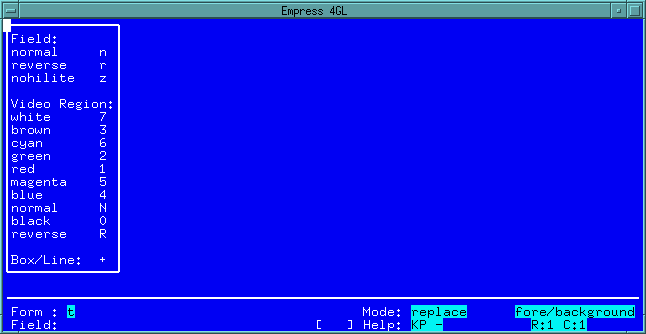
 Figure 5-2 Objects Menu
The previous chapter discussed the interface between an application and the database tables. This chapter deals with the interface between the application and the user.
Empress 4GL uses fields to present information to and receive information from users. Each field is part of a form, and forms are provided to users via windows. In addition to these topics, we will discuss editing and control of the video attributes used in forms.
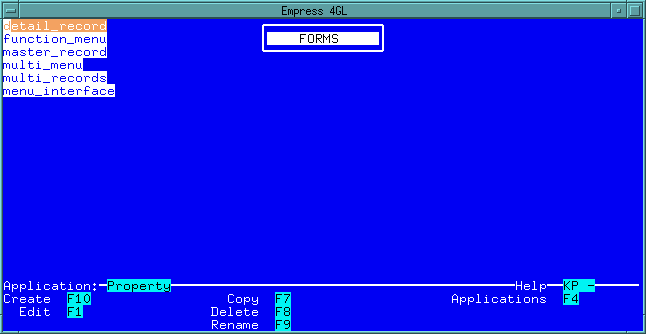 Figure 5-1 Forms Manager Window
A form is created using the Empress 4GL Form Editor. With this editor, what you see is what you get. You do not need to learn any cumbersome coding. There are two elements to a form: the background and the foreground.
The background of a form is the text, video regions, lines, and boxes that appear on the screen when the form is visible. The application cannot change this part of the form. The main use of the background embellishes the form and makes it even more "user friendly".
It is easy to add text to the form. To add text, move the cursor to the place where you would like the text to appear and type it in. You can put text under a field so that it shows through when the field is not filled with data. However, you cannot put text on top of a field. The text can be put under a field before the field is placed or when the Form Editor is in background only mode. In background only mode, the fields are removed and the background can be changed without any affect on the foreground video regions.
The Objects Menu shows what types of objects can be created
on your terminal:
Figure 5-2 Objects Menu
There are three basic object types you can create:
Note
It is possible to have terminals defined to support other attributes (e.g., blinking, different colours, etc.). In this case, the items shown under Video Regions: will display more options such as the colors supported by the terminal. When using these attributes to design a form, some terminals will not support them. In these cases, the attributes that are not supported will have to be mapped into others in the terminal definition before the application can be run on those terminals.
5.1.2 Foreground
5.1.2.1 Fields
The foreground consists of fields. A field is a space on the form where
you can insert data. It can receive data from the application or from the
user. When creating a field on a form, use the Create Field key.
This time, select a field of the appropriate type. There are two default
field types: normal and reverse. You can define different field types for
terminals that support different attributes including different highlighting
attributes.
5.1.2.2 Field Video Types
A normal video field will usually be displayed in normal video. However,
when the field is current it will be displayed in reverse video. A reverse
video field will behave in the exact opposite way as a normal video field,
while a nohilite field will be normal video whether it is current or not.
As well as video attributes, each field type also has fill characters associated with it. If the field is defined with the fill option on, the characters represent the areas of the field that are not filled with data. For normal video, it is usually an underscore; in reverse video, it is usually a space.
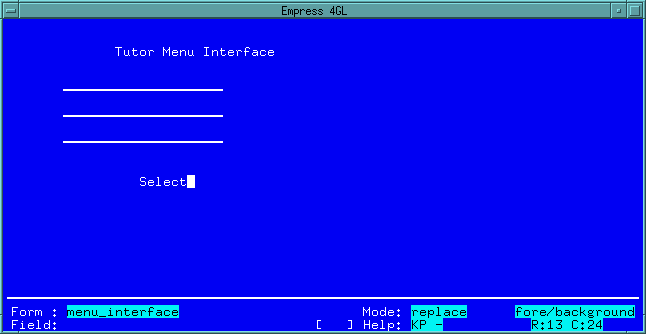 Figure 5-3 Editor Screen
The editing area is usually twenty-one rows by eighty columns (although some terminals may be larger), but it can deal with much larger forms. You can scroll the forms so that any part is visible within the editing area.
When making changes using the Editor, changes will only affect those areas of the form which are visible. For example, deleting a line of the form will not delete the parts of the form which are to the right of the screen, only that part of the line which is visible. You will find this useful, for example, to insert a line on one part of the form while leaving the rest in place.
Below the editing area is the information area. This shows some status information for the Editor.
The right hand side of the information area shows the name of the form and, if the cursor is in a field, the name and number of the field. The field number will be greater than "1" only if the field is a multi-field.
In the centre is the mode indicator. It can have three different values, indicating one of three modes.
Below the mode indicator is a single menu item. It indicates the key that should be pressed to access the Field Editor Help screen.
The right side of the information area contains an indicator for foreground/background mode. It will be fore/background by default and background only when the Editor is placed in background mode.
Also on the right side are the row and column indicators. These display the cursor coordinates in relation to the top of the form. Note that these can be negative since it is possible to scroll above or to the left of the home position of the form.
The pop-up menu for field characteristics also allows access to the
Field window:
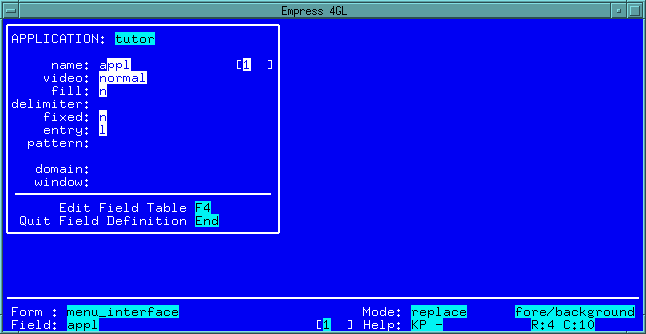 Figure 5-4 Field Window
The first field on this window is the name of the field. When a field is initially created its name is a number. If there are no other fields with numbers for names it will start with "1" and continue from there. One good suggestion is to use the name of the attribute into which the field's value will be placed in the table. This makes it simpler to transfer data between the fields and the attributes using the set_field_values and set_attr_values functions.
The video attribute can be changed in this window. In addition, you use the Create Field key while in the field, and change the video attribute by selecting the appropriate type of field from the menu.
The fill flag can be n, for no or y, for yes. If it is n, the fill characters will not be used when the application is run. For example, if the field is defined to be 10 characters long but only 5 characters of data are in the field, then the background of the form will be visible for the last 5 spaces where the field would normally be. If the fill is y, the last 5 spaces will be filled with the fill character for the field type that is defined.
The delimiter is used to mark the beginning and end of a field. This is another way of making a field stand out, other than using the video attributes. By default there is no delimiter.
In Chapter 1, we discussed the possibility for the data in a field to be bigger than the field. This is controlled by the fixed flag. It can have four different values.
A value of n in the fixed flag indicates that the values in the field can be as large as necessary. They are not restricted to the size of the field. The other three values limit the size of the data to the size of the field. Each one causes Empress 4GL to behave differently when a character is typed beyond the boundaries of the field. An "f" causes the last character to be overwritten with the new character, a "b" causes a beep on the terminal, and "a" causes an auto skip, meaning the character becomes part of the next field.
The entry flag controls the way in which data is entered into the field. The default "l" is for normal left entry. Data starts at the left side of the field and is added to the right. The "r" value is for right entry. It is most commonly used for numeric data and puts all the characters in at the rightmost side of the field and pushes any previous characters to the left.
When a field is created on the form, you can specify an edit pattern to format the data that is entered into a field. An edit pattern is useful for formatting data as well as forcing a specific input format. They are described in more detail in the Empress 4GL User's Guide manual.
The last two parts of the field definition are the domain and window. The domain is a set of pre-defined values for the field definition parameters. If any of them are left null for the field then the appropriate domain is searched for the values. This allows fields with similar characteristics to be easily grouped together for maintenance purposes. The window field is simply the name of a window in which the field will be displayed. You only need to enter a field definition for the application if the Edit Field Table function is used.
Caution
Be very careful that the cursor is on the field, because if you press the same key while not on the field, the entire line of the form will disappear, both the foreground and background.
Once a field has been cut, the cursor can be moved to where the field is to be placed (upper right hand corner of the field's new location) and the Put Field/Box key will paste the field into place. Repeated use of the Put Field/Box key will paste copies of the field which are identical in every way except for the name. If you want to copy a field you have to cut and paste it, move it to where the copy is to be made, and finally paste it again.
To join two fields together, you must place the cursor in the first of the two fields. This field will be the one that keeps its name and characteristics. Press the Join Fields key. Move the cursor to the second field and press the Join Fields key again. The two fields are now one field.
In the first example described above, the joining of fields can be used to extend the size of a multiple line field for an address or description. If you want two new lines, a field can be created in the appropriate spot and the fields can be joined. No characteristics need to be altered since they will automatically change when the field is joined. This is simpler than removing the existing field and recreating it, in which case the characteristics would have to be reset.
For the phone number example, consider that a phone number consists of an area code, exchange, local and sometimes an extension. A common notation for a phone number is "(333)555-2222 x4444". While you may want the delimiters as part of the data, it is often simpler to just store the actual digits. Rather than having the application parse out the digits or having four fields that need to be handled separately, you can design a single field with four parts. Initially, you will have to create four fields of the appropriate size. Join them together with three separate join operations, and add the background to put in the desired delimiters. The user simply needs to type in the phone number and the application can use a single field to deal with it.
Please note the mode of the Editor when joining fields. It is possible to be in multi mode which is used to define multi-fields. If this is the case, joining two fields together makes the two fields separate parts of the multi, in other words, different elements of the array. This is very helpful for extending multis or creating multis which have differently shaped fields (e.g., each element of the multi is a two-line field).
Note that the cursor is on the third line of the multi-field, indicated
by the field number:
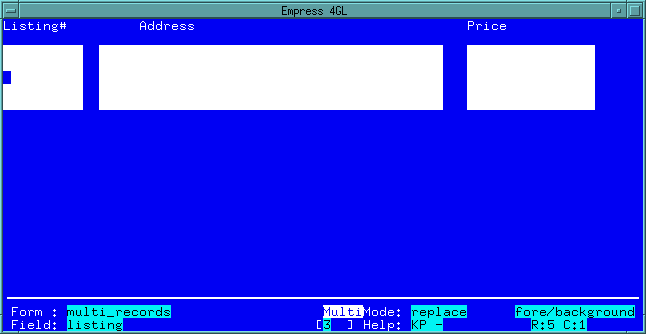 Figure 5-5 Multi-fields
To create multi-fields the Form Editor must be in multi mode. The Normal/Multi mode function key will toggle between multi and normal modes.
When the Editor is in multi mode, any field that you create with more than one line becomes a multi-field. Each line is an element of the array. At the bottom of the editor where the field name is displayed, the field number is also indicated. The field number will increase with the number of elements in the multi, whereas in normal mode it will always remain at "1".
When you create a multi-field, remember that the elements of the field are numbered in the way that they are created or added. In other words, if you create a multi-field starting with one of the bottom corners, the numbers will start at the bottom as opposed to the top.
Also, fields joined together when the Editor is in multi mode will become separate elements within a multi-field rather than a single field. As such, you can create multis of different sizes and shapes and make extensions to existing multis.
Note
The new fields joined to the existing multi-field will be numbered starting where the existing one left off. If the new field is a multi, its elements will be recalled in their previous order.
The Window window will allow the programmer to update the sys_4gl_window
table:
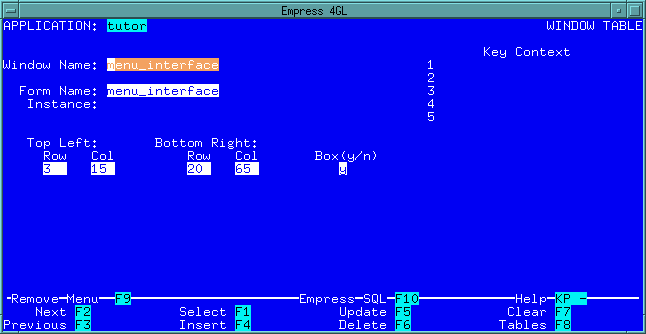 Figure 5-6 Window Table
A window definition has several important parts. Among these parts are window size and placement; boxes; forms and forms instances; and key contexts.
When you define a window, remember that you cannot place the window outside of the terminal screen. Empress 4GL will cause a runtime error if the application attempts to do this. This is especially critical when dealing with terminals that have different sized screens. If an application is designed to have windows that are 132 characters wide, terminals that don't support 132 character displays will not be able to run it. The size of a terminal screen is defined in the Empress terminal database. A terminal may support 132 character mode but the terminal definition may say it is only 80.
5.2.3 Forms and Form Instances
Every window is used to display a form. The window definition has a field
which indicates the form that will appear in the window. In addition to
the form name, there is a form instance name. This is the name of a particular
copy of the form. If an application has two windows defined to use the
same form, the form instance name will determine whether both windows will
see the same data or not, depending on whether the names correspond.
If you do not specify a form instance name, Empress 4GL assumes that it is the same as the name of the form. Also remember that the name of a form instance has nothing to do with the name of the form.
5.2.4 Key Contexts
Lastly, the window definition includes a set of key contexts. Key contexts
will be described in more detail in Chapter 6. For the purposes of this
discussion they can be considered as sets of key definitions. The key contexts
which are defined as part of the window are activated when the window becomes
current.
In this way, an Empress 4GL application can define keys to be "window sensitive". In other words, the keys behave differently in different windows. If there is no key context specified, Empress 4GL assumes that it should use any context with the same name as the window.
This feature is useful if you want to assign a key to toggle between two windows of an application. The same key label can be defined in two different key contexts. In the first context it will be used to make the second window visible and current. The second context would redefine the key to make the first window visible and current. The two contexts could then be assigned to the appropriate windows. The appropriate definition would become active in each window. Note that there are other ways to accomplish the same function.
However, only one window will be current at any given time. The current window is the window in which the user is working in. There are functions which determine whether specific windows appear, where they appear, and which window is current.
The basic window functions in Empress 4GL are the show_window, remove_window and current_window.
The show_window function makes the specified window appear on the screen. The window will first appear in the location you define. Then, it can be moved and re-sized. Further calls to display the same window will display it in the same location and size as its last use. It will also be in front of any other windows that are visible (i.e., if they overlap, this window will be seen). Therefore, you can use the show_window function to move a window to the front of any other windows.
The converse function is the remove_window. It will remove the window from the screen so that it is no longer visible.
Use the current_window function to define the current window, and optionally the current field. If there is a specified window, this will place the cursor into its current field and activate the key contexts which are defined for the window. If the current field parameter is not specified in the function call, the current field will be the field that was current the last time the window was current. Otherwise it will be undefined and the cursor will appear in the upper left corner of the window. The -x option will force the execution of the exit script for the current field.
A window does not have to be visible in order for it to be current. The current_window function will not display the window. The cursor moves around the terminal screen as if the window was actually there, but the user will not be able to see anything. Therefore, consider this when you make a window current. The show_window command will be necessary to make the window visible, to move a window to the front. It will be necessary to make another window current when you remove the current window.
When the application begins, there is no current window defined. Once a current window has been defined, there will always be a current window. You cannot make a window "uncurrent". You can only change the current window.
The current_window_name function, which takes no parameters, will return the name of the current window. This function can be used within a script to determine a specific course of action (i.e., if in this window do this, else do that). It can also be used to keep track of the window name for later use (i.e., return to this window when done with a pop-up window).
You can move a window with the move_window function. Its parameters are a window name, the number of rows, and the number of columns. The specified window is moved by the appropriate amount if possible. Remember that the window must remain completely visible. Positive values will move the window down or to the right while negative values move the opposite directions.
Using the zoom_window function, you can alter the size of a window. It takes five parameters: the window name, number of rows at the top, number of columns to the left, number of rows on the bottom, and number of columns on the right. The specified number of rows and columns will be added - or subtracted if the value is negative - from the size of the window.
The application itself can generate these messages using a different function for each type of message.
The info_message displays a temporary window with the character string to which the parameters passed evaluate. Each expression concatenates to the previous one. The window is visible until the user presses any key.
To generate an error message, use the error_message function. The difference between the info_message and error_message is that the latter will also terminate the event that is being processed and return control immediately to the application.
Debug messages are printed using the debug_message function. These messages halt the execution of the script while the message is visible. As soon as the user presses a key, the message disappears and the script continues. This function is used for simple debugging or when timing of an event must be controlled by the user.
Information and error messages can be generated by Empress 4GL itself. These messages always take priority over application generated messages, except for debug messages. Since Empress 4GL often generates error and warning messages that the application may want to control, you should use the clear_status function to override any outstanding messages. It sets up the message buffer as if there were nothing in it.
Empress 4GL has a default window that is used for error and information messages. However, it is possible to get Empress 4GL to use other windows for these messages - if, for example, the default window is appearing in a spot that is being used by the application.
The info_window function specifies which window and which field in that window are to be used for the information messages that are generated by Empress 4GL. This includes calls to the info_message function and messages such as "no next record" or "record 6 of 13". If a window name is not passed, the default window will be used.
The error_window function does the same for any error messages that are generated (i.e., from the error_message function or failed update operations, etc.).
The temporary_window function can be used to display any window in the same fashion. Once a key is pressed, the window disappears. If a field is named then that field is used for any messages that follow. Multiple messages can be passed to this function. If more than one message is passed and the field is a normal field, they will be concatenated together and put into the field. However, if the field is a multi-field, each expression will be placed into a separate element of the field.
The sys_4gl_field table can be updated through the Fields
window:
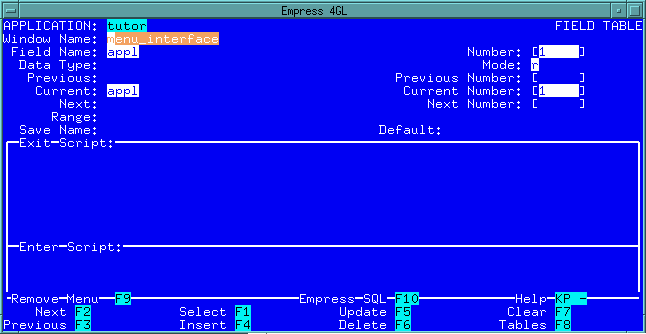 Figure 5-7 Fields Window
5.3.1 Field Data Type
One of the first things that you should define is the data type of the
field. By default, any character data is accepted in a field. It is possible
to limit the field to accept only numeric characters by making it an integer
or decimal type. All Empress data types are supported (i.e.,
generic/non-parameterized and parameterized).
5.3.2 Field Mode
You can also define the field mode. There are three different modes:
| w | Write mode. This lets the user type data into the field. The data can be modified both by the application and the user. |
| r | Read mode. then the user is not able to modify the data in the field. However, the field can still be made current. A field in read mode can be useful for allowing the user to make a selection of items. For example, a pop-up window can display a list of choices - possibly selected from a table - from which the user can select without being able to change the values. |
| s | Skip mode. A field defined as "s" cannot be made current. As far as the user is concerned, it is part of the background. An application can use skip fields to display information to the user. Most of the menus used in applications use skip fields. |
If a field is not defined in an application, it is considered to be a skip field.
5.3.4 Field Numbers
When you define a field, be sure to choose the correct field number. In
cases where non-multi-fields are used, the field number is "1" since there
is no other number for that field.
When dealing with multi-fields the number is important. If a field definition has the number "0", it applies to all the fields within the array. However, the definition can be overridden for specific cases. To do this, you need separate field definitions for the special cases, with the field number explicitly defined.
The next and previous fields also need a number. In the non-multi case these will be NULL or "1". For a multi they can be any number: null, to indicate the same as the current field number; or a + or -, to indicate the current field number plus or minus one. In most cases, the field number will be the same as the current field; multi-fields will usually stay on the same line so null should be used. This will be covered in more detail in the chapter "Multis" in this manual.
The default value of a field is the one that will be assigned to the field when the reset_fields function is used.
The saved name of a field will default to be the name of the field itself. However, it can be specified in the field definition so that two or more fields can have the same saved value. Furthermore, if two fields have the same name but different numbers, saved names can be used to differentiate between them - otherwise they would have the same value.
The exit script is called whenever an attempt is made to leave the field. This includes making another field current as well as executing some key scripts. An exit script is usually used to format and validate the data in one or more fields.
5.3.8 Assigning and Retrieving Values
The application can assign a value to a field using the assignment statement
or one of several functions. The value can be returned by using the field
name as a variable, or by using one of several functions.
The two functions most commonly used to assign values to a field are field_update and current_field_update. The first is the same as the assignment statement:
LET 'window'@'field' = valueThe difference is that it allows variables to be used for the names of the window or field. The current_field_update function will assign the specified value to the current field on the current window, or to the window that is specified.
You can use the set_field_values function to assign field values from the data selected from tables.
To retrieve a value from a field, there are similar functions. The field_value function will retrieve the value of the field. It is the same as using 'window'@'field' in an expression, except it allows variables to be used. To get the value of the current field the current_field_value function is used. If the window is not specified the current window is used. In addition, there is the set_attr_values function which moves the values in the fields directly to the table buffers.
Notice that both the current_field_update and current_field_value functions allow a window name as an optional parameter. This is because a window can have a current field even though the window itself is not current.
When an event contains more than one reference to a function which resets the current field, the behaviour may not be entirely as expected.
Note that:
5.3.10 Field Characteristic Changes
It is also possible for an application to change the characteristics of
a field. Both the video attributes and the field modes can be changed.
Video attributes can be changed using the field_video and current_field_video functions. These are useful for highlighting a field for a particular reason (e.g., there is a data entry error in that field).
You can change the field mode with the field_mode function. This can be set to "w", "r", or "s". In a generic application, this function can be useful because it allows fields to be dynamically "dropped" off of the form (at least from the user's viewpoint).
Other functions allow the application to find out things such as the name of the current field (current_field_name), the number of the current field (current_field_number: used for multi-fields) and the highest possible field number (largest_field_number).
A default value is one that is defined for a field when the application is written. It can be entered into the field at any time by calling the reset_fields function.
Saved values are dynamic values. They can be set at any point in the application and are saved even though the data in the field itself may change. There are several Empress 4GL functions to deal with saved values.
All of the saved value functions that follow have three parameters except for the set_save_value, has four parameters. These parameters are the name of a window, a field, and a field number (with a value to assign in the case of the set_save_value). In every case, the window name can be specified as the keyword NULL to indicate the current window. The keyword NULL as a field name indicates the current field, while omitting the field name altogether indicates that all of the fields in the window are to be affected. This does not apply to the set_save_value and get_save_value functions since they are field specific. The field number will default to the current field number if not specified.
At any point, an application can save the current value of a field or fields using the save_field function or set the saved value to any expression using the set_save_value function.
Using compare_save_value detects when the current value of a field is different from its saved value. It is a valuable tool that allows the application to remind the user to update or insert a record before exiting or moving on to another record.
Other functions that relate to the saved value are returning the saved value (get_save_value), setting it to null (clear_save_value), and setting a field back to its saved value (restore_field).
These functions ignore nulls. This means that if a field's value is null then it will not affect the current saved value for that field and vice versa. For this reason, it is important to consider how this will affect the application.
As an example, consider an application that uses these functions to get confirmation from the user. The application wants users to confirm whether they want to perform a next, previous, clear, and so on after the data has been changed (not inserted or updated). The save_field function can set all the save values after each new record is displayed and inserted or updated. Then the required functions can use compare_save_value to determine whether or not users have made changes that are not saved.
This will cause problems if some fields are null in the second record that are not null in the first. In this case, the user may not have changed the information on the screen, but the null values in those fields do not match with the saved values from the previous record. To avoid this, the clear_save_value function can be used just before each save_field. Similarly, the reverse situation could occur with the restore_field, but the clear_fields function would solve that.
5.4.1 Editor Modes
By default an application starts with the Editor in replace mode. This
allows the user to overwrite any values in a field. If the user wants to
put new data into the middle of a field, they must switch the Editor into
insert mode. When in insert mode the data is added at the cursor, and all
the data to the right is shifted over. The mode is toggled by the Insert/Replace
mode function key.
If a field is created as a fixed length field it will not be possible to insert more data than the field will hold, regardless of the Editor mode.
Since Empress 4GL will always scroll the data to keep the cursor visible the user may be disconcerted from time to time. Suppose they have typed in the data and hit the <Return> key, expecting to move on to the next field. If the Editor was somehow put into insert mode hitting the <Return> key would scroll the data up one line making it look as though it had been erased. The user then types the data again and has the same result.
You can avoid these problems by teaching the users about this behaviour and encouraging the use of the Next Field and Previous Field keys to move from field to field. Another alternative is to redefine the <Return> key so that the application controls what it does. The details of this will be described in the chapter "Key Context" of this manual.
The delete character function will delete the character which the cursor is on and shift everything that is to the right. The only exception to this is if the cursor is at the end of the line (i.e., just past the last character). In this case the character to the left of the cursor will be deleted.
There is also a clear to end of line function. It will delete all characters from the current cursor position to the end of the line. Note that any data that is not visible to the right of the field (i.e., it is longer than the field can display) is not considered to be on the same line and is not deleted. It will be shifted appropriately.
If the clear to end of line function is used when the cursor is at the end of the line then any carriage returns will be deleted and the line that follows will be merged into the current line.
Another function to move the cursor is the line beginning/end function. It will normally move the cursor to the end of the current line. The only exception is when the cursor is already there, in which case it will move to the beginning.
5.4.6 System Editor
Finally, there is a function that is important when dealing with large
amounts of data within a field (e.g., application scripts, electronic mail
messages, etc.). This is the System Editor function. It allows the user
to call up a System Editor such as vi, emacs.
The data in the field is
stored into a temporary file and then the Editor is called with that file
as its argument.
The file can be modified in any way using the editor and then saved. Exiting the editor returns to the application with the contents of the temporary file put back into the field.
Note
Saving the changes in the Editor does not enter the values into the tables. It is still necessary to do an update or insert after the editing is complete.
The choice of Editor is controlled with an Empress variable called MSEDITOR. Each user can set up their own MSEDITOR variable in their environment. The system wide default can be set in the Empress custom directory in the init file.
The terminal database is in the Empress 4GL directory and is called termdb. There is one application, called sys_terminal which can be used to modify the terminal database. SQL or another Empress 4GL application can also be used.
There are eight tables that are used to define a terminal definition:
Table 5-1
| VT100 | ||
| video_set | video_name | video_seq |
| vt100 | normal | cmd m |
| vt100 | reverse | cmd 0;7m |
If the terminal supports blinking, protected, dim or colours of any kind, they can be defined in this table.
The second step involves the term_ap_video table. This table will map the video names into video labels. For each video label it is possible to have two different video names. One for lo_video and the other for hi_video. The lo_video is used for any video regions that are defined with this video label. The hi_video is used when the object is a field and the application has made the field current.
Looking to the VT100 once again as an example, there are normally three entries in this table for such a terminal. The first is for normal (the others being reverse and nohilite). It has the lo_video set to normal so regions will be normal video and fields will be normal when they are not current; and the hi_video set to reverse so that fields will be reverse video when they become current.
As well, there are lo_fill and hi_fill attributes in the table which contain the characters to use to fill out the field when there is less data than the field will hold - provided the fill flag is turned on for that field. When a field is in normal video, usually the underscore is used; in reverse video, it is usually a space.
The following example is the normal definition for the VT100 terminal.
Table 5-2
| VT100 | |||||
| video_set | video_label | lo_video | lo_fill | hi_video | hi_fill |
| vt100 | normal | normal | reverse | ||
| vt100 | reverse | reverse | reverse | ||
| vt100 | nohilite | normal | normal | ||
The last step is to define entries in the term_form_edit table for the various types of objects that will be available for a given terminal. There are three attributes in this table which are important. The object (which can be one of three values: "b" for boxes and lines, "v" for video regions or "f" for fields) is used to declare the type of object being allowed. The video_label maps to the entry of the term_ap_video table that is to be used; the key_name is the key that is to be pressed to create the object.
This table is used to create the pop-up menu that is displayed when creating an object in the Form Editor. As an example, the entries for the VT100 is as follows:
Table 5-3
| VT100 | ||||
| video_set | key_set | object | video_label | key_name |
| vt100 | vt100 | b | normal | + |
| vt100 | vt100 | f | normal | n |
| vt100 | vt100 | f | reverse | r |
| vt100 | vt100 | f | nohilite | z |
| vt100 | vt100 | v | normal | N |
| vt100 | vt100 | v | reverse | R |
One thing you should considered when adding new video attributes to a terminal definition is the capabilities of all the terminals that will be used to run a given application.
Example
An application is to be run on two different types of terminals, one which has the ability to use colour and the other which doesn't. It will be necessary to enter video label definitions for both which will map to colour entries in one case and other video attributes in the other.
Assuming the terminals are defined as "colour" and "mono", the entries in the three tables may look as follows:
Table 5-4
| term_video | ||
| video_set | video_name | video_seq |
| colour | normal | xxx |
| colour | reverse | xxx |
| colour | red | xxx |
| colour | blue | xxx |
| colour | white | xxx |
| mono | normal | xxx |
| mono | reverse | xxx |
| mono | dim | xxx |
| mono | blink | xxx |
| mono | intense | xxx |
Note: the actual video sequences are not important and are represented by "xxx" in this example.
Table 5-5
| term_ap_video | |||||
| video_set | video_label | lo_video_name | lo_fill | hi_video_name | hi_fill |
| colour | normal | normal | reverse | ||
| colour | reverse | reverse | normal | ||
| colour | nohilite | normal | normal | ||
| colour | dim | blue | white | ||
| colour | intense | red | white | ||
| colour | normal | white | red | ||
| mono | reverse | normal | reverse | ||
| mono | dim | reverse | normal | ||
| mono | dim | dim | intense | ||
| mono | blink | blink | intense | ||
| mono | intense | intense | blink | ||
In the above example the entries in the term_form_edit table don't necessarily have to correspond <197> as long as any objects that are referenced when the application is created are available when the application is run on a specific terminal. This may mean adjusting terminal entries to use or map video attributes. It may also mean restricting the types of objects that are used.
Table 5-6
| term_form_edit | ||||
| video_set | key_set | object | video_label | key_name |
| colour | colour | b | normal | + |
| colour | colour | v | normal | N |
| colour | colour | v | reverse | R |
| colour | colour | v | dim | D |
| colour | colour | v | intense | l |
| colour | colour | f | normal | n |
| colour | colour | f | reverse | r |
| colour | colour | f | nohilite | z |
| colour | colour | f | dim | d |
| colour | colour | f | blink | b |
| colour | colour | f | intense | i |
| mono | mono | b | normal | + |
| mono | mono | v | normal | N |
| mono | mono | v | reverse | R |
| mono | mono | v | dim | D |
| mono | mono | v | intense | l |
| mono | mono | f | normal | n |
| mono | mono | f | reverse | r |
| mono | mono | f | nohilite | z |
| mono | mono | f | dim | d |
| mono | mono | f | blink | b |
| mono | mono | f | intense | i |
For a more complete discussion of the terminal database refer to the Empress 4GL Administrator's Guide manual.