Within an application, a key context is used to define the actions Empress 4GL should take when you press a key. Different key contexts can be active at different times allowing the keys to be redefined by the application as necessary.
An Empress 4GL application uses an "internal stack" to keep track of which key contexts are active. Several key contexts can be on the stack at any given time. An application can put a key context on the stack in three ways.
Above these key contexts, the application can have a layer of key contexts called global key contexts. You can find a listing of these contexts on the second page of the Application window. These key contexts stay on the stack for the duration of the application session.
Each window within the application can also have a list of contexts associated with it. When you make a window current, its contexts are pushed onto the stack.
Finally, you can use the push_key_context and pop_key_context functions to manipulate a window's key context stack. If the window is current, you can use these functions to manipulate the active stack. Also, the reset_key_context function will reset the active context for a window that is in the window definition (i.e., emp_4gl_window table).
This is very useful for redefining certain function keys. For example, you may wish to redefine the help function in an application. You can define a key context to gives the Help key label to a specific help function. If you make this context a global context, the Empress 4GL will always use the application definition when you press the help function. If you only want the help function available at certain points in the application, you can make the context active at those times by using the push_key_context or by attaching it to the appropriate windows.
These multiple key contexts are also helpful for changing menus. You can define a key that will change the functions for some of the function keys. When you press this key, another key context would be pushed onto the top of the stack. This key context would redefine the functions for the keys that you chose. An example of this is available in the Application Manager screen of the development application. Using the Menu 2 function, a second menu will appear to give you have a "second set" of function keys.
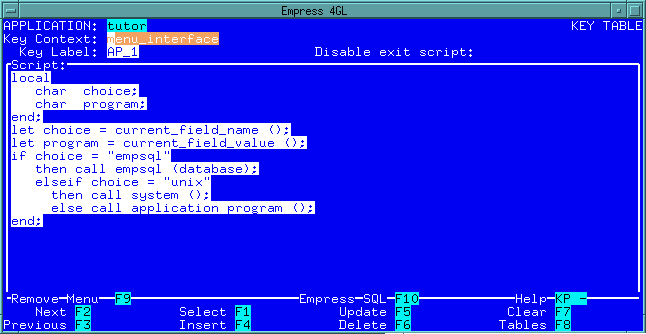 Figure 6-1 Key Window
6.2.1 The Key Label
A key label is a generic key name. The set of key labels includes AP_1
through to AP_10 as well as such labels as Next Field,
Help, and Go Up. Each of these labels will correspond
to a set of keys on the terminal. To determine which labels correspond
with which keys (there can be more than one per key label), you must enter
the information in the terminal database.
This feature allows you to design Empress 4GL applications without worrying about which keys you can use on a terminal. You only need to decide which key label to use. Each terminal will have different keys mapped to a label, but you do not need to worry about this.
In the terminal database, there are two tables that concern the key labels. They are term_key and term_ap_key.
The term_key table is used to map a key name (e.g,. F1 or KP 1) to an actual escape sequence. When you press the proper key, the escape sequence is invoked. The following example shows two of the entries for a typical VT100 definition.
Table 6-1
| VT100 | ||
| key_set | key_name | key_seq |
| vt100 | L-Arrow | esc OD |
| vt100 | KP 1 | esc Oq |
This lets Empress 4GL know that the ASCII sequence esc OD indicates that the left arrow key, while an esc Oq indicates the "1" on the key pad.
Some keys do not need to be defined because they have standard ASCII sequences. For example, <Return>, <Tab>, and <Ctrl+X> key names - where X can be any character - already have standard functions.
The term_ap_key table will map the key names from the term_key table into key labels. These labels will be consistent throughout every terminal entry although the actual key names that they are mapped to are different. The following table shows some of the entries for a VT100 as well as the corresponding entries for a Sun console which uses "R keys".
Table 6-2
| VT100 | ||
| key_set | key_label | key_name |
| vt100 | GO_LEFT | L-Arrow |
| vt100 | GO_LEFT | BACKSPACE |
| vt100 | AP_1 | KP 7 |
| vt100 | AP_2 | KP 8 |
| sun | GO_LEFT | L-ARROW |
| sun | AP_1 | R1 |
| sun | AP_2 | R2 |
Note that two key names are mapped to the GO_LEFT label in the VT100 definition.
6.3 Designing Menus
Menus are an important part of an Empress 4GL application.
They let users know what keys perform what functions. Since a large number
of terminals may be used to run the application, and each one uses different
keys for different functions, Empress 4GL gives you a way
to set up the right menu for each terminal. There are two functions that
can be used to do this.
The key_name function will take the key label, or the label that you use when you define a key script, as a parameter. Empress 4GL will search through the terminal database in the term_ap_key table until it finds an entry for that label. It will return the key name as the value.
For example, the key name AP_1 will return a value of KP 7 on a VT100 terminal and R1 on a Sun console. This value can then be assigned to a field on a form that holds the menu.
Empress 4GL offers you a second function that simplifies the process even more. It is the set_key_values function. The only parameter that is needed is the name of a window. The function will scan all of the fields that are in that window and perform a key_name function with the field name as the parameter. Any value that is returned will be placed in the field.
This makes menus easy to create. A form needs to be created with the function description beside a field. This field is named after the key label. The application then runs the set_key_values function to dynamically create the menu.
This usually happens in the application enter script or when the menu becomes visible using show_window; however, you can create the menu at any time. It should be done before or during the event that makes the window visible in order for the values to be there. Note that if the window is cleared, you will have to re-run set_key_values to reset the values.
Since you will almost always use the Empress 4GL Field Editor, the Help key label should be included on the menus you create. This way, the Help key is readily accessible for all users when they use the Field Editor.
For example, when you perform an insert operation, you may want to validate the data that you enter. Therefore, the exit script for the current field should still be performed.
Some functions may not need to be validated. In this case, you should set the application to ignore the exit script by setting the disable exit flag to y for "yes".
For the clear screen function, you should disable the field exit since there is no reason to validate data that is about to be removed. In fact, the data that is in the field may be invalid and the exit script may encounter an error which would stop the clear screen function from being executed. An exit function is another example of a function that does not need data to be validated.