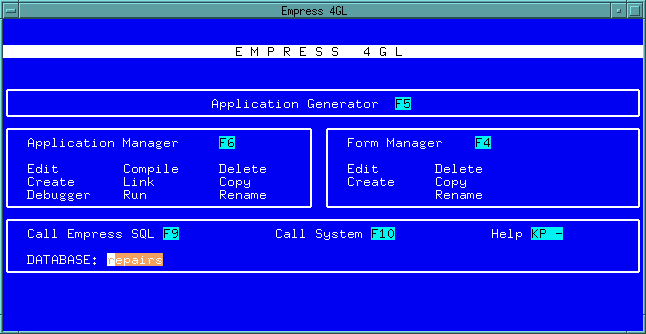
 Figure 1-1 Main Menu
Empress 4GL is an application development environment. It provides sets of tools to make application development a pleasant task. The following tool sets will be discussed in the following chapters:
1.1 Empress 4GL and Empress
Empress 4GL applications can access any Empress
database. The applications themselves are stored in a database, which must
be initialized with Empress 4GL system tables. To initialize
the database, type the command:
emp4init database
where:
database is the name of the database.
If the database does not exist it will be created. The initialization process creates Empress 4GL system tables in the database. These are ordinary Empress tables that will be used by Empress 4GL. They may be viewed via the Query Language, but you should not alter their structure.
The database only needs to be initialized once. The initialization does not affect any other Empress operations. If there happens to be a table in the database with the same name as an Empress 4GL system table, the initialization will fail and an error message will be printed. Error messages will also be printed if you attempt to initialize a database that has already been initialized, since the system tables will already be present.
Empress 4GL can be invoked by the command:
emp4gl database
where:
database is a database suitably initialized for use by Empress 4GL.
An Empress 4GL application can be directly invoked by the command:
emp4gl database application [args { args}]
where:
| application | is the application. |
| args | are any arguments to be passed to the application. The arguments should be separated by spaces. |
1.3 The Main Menu
When invoked without specifying an application, Empress 4GL
presents its Main Menu as shown below.
Note
Since Empress 4GL runs on many different terminals, the assignment of functions to function keys may differ from one terminal to another. When you bring up Empress 4GL on your terminal, the keys assigned to the various functions may be different from those shown in the figure. To drive Empress 4GL, you must press the keys shown on the Main Menu on your terminal.
The section at the bottom of the screen shows function keys to press
to call Empress, the operating system and the Help screen.
The name of the default database in this example is repairs.
Figure 1-1 Main Menu
From the Empress 4GL Main Menu, the following functions are provided:
Table 1-1
| Key | Function |
| Call Empress SQL | Calls Empress' Query Language interface with the database as the default database. Any Empress operations may then be performed as usual. The normal database STOP or EXIT command will return to Empress 4GL. |
| Call System | Calls the operating system. Any operating system commands may then be performed as usual. The normal log-off procedure will return control to Empress 4GL. |
| Help | Calls up the Help screen for the Field Editor.The Help screen also shows which keys to press to Empress 4GL and to redraw the screen if it is disturbed. |
| Database | This shows the current (or default) user database. The default database may be changed. |
1.3.1 The Application Manager
The Application Manager option presented on the Main Menu allows
you to maintain the applications in the database.
Application names in the database are listed in two columns on the screen. The cursor rests on the name of the current application. Pressing the Field Editor's field motion keys moves the cursor from one application to another. You select an application by moving the cursor to it.
There are two menus attached to the Application Manager. Menu
1 has the following functions:
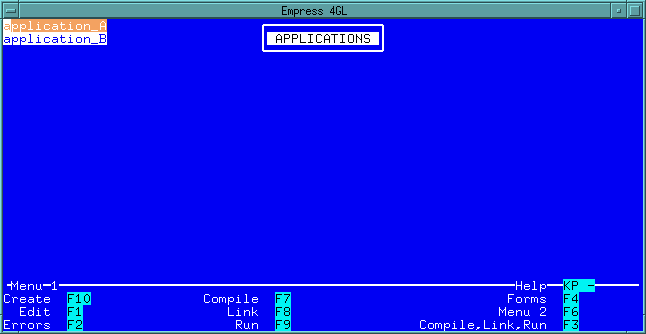 Figure 1-2 Application Manager
Table 1-2
| Key | Function |
| Create | Invokes the Script Editor for a new application. You will be prompted for an application name. |
| Edit | Invokes the Script Editor for the current application. |
| Errors | Displays a list of errors generated from Compile and Link. |
| Compile | Compiles the current application. |
| Link | Links the current application. |
| Run | Loads and runs the current application. |
| Forms | Calls the Form Manager. |
| Menu 2 | Displays the second menu. |
| Compile, Link, Run | Performs the compile, link, run function in one keystroke. |
The second menu, Menu 2, is shown below.
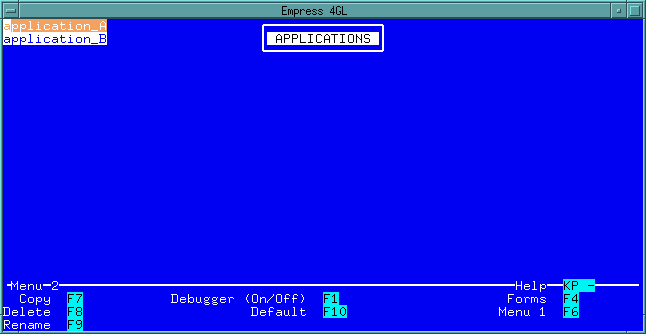 Figure 1-3 Menu 2
It has the following functions:
Table 1-3
| Key | Function |
| Copy | Copies an application. The current application is the default for the one to be copied, but you may specify another application (possibly in another database) to be copied. You will be prompted to supply a name for the new application. |
| Delete | Deletes the current application from the database. All scripts and forms associated with the application will be deleted. |
| Rename | Renames the current application. You will be prompted for a new name. |
| Debugger | Turns the Empress 4GL Application Debugger on and off. |
| Default | Creates an application based on one database table providing a default set of function keys. |
| Forms | Invokes the Form Manager. |
| Menu 1 | Displays up the first menu. |
For detailed information on the Application Manager, please refer to Chapter 6 - "The Application Manager".
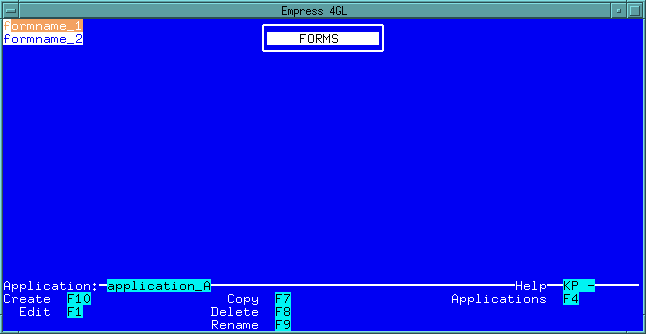 Figure 1-4 Form Manager
Form names in the database are listed in two columns on the screen. The cursor rests on the name of the current form and since the current form is associated with an application, it is listed in the application field. Pressing the Field Editor's field motion keys guides you to each form. You may select a form by moving the cursor to it.
The Form Manager provides the following functions:
Table 1-4
| Key | Function |
| Create | Invokes the Form Editor to create a new form. You will be prompted for a form name. |
| Edit | Invokes the Form Editor to edit the current form. |
| Copy | Creates a copy of a form. The current form is the default form to be copied, but you may specify another form (possibly attached to another application in another database) to be copied. You will be prompted to supply a name for the new form and the name of the application to which it belongs. |
| Delete | Deletes the current form from the database. |
| Rename | Renames the current form. You will be prompted for a new name. |
| Applications | Calls the Application Manager. |
For detailed information on the Form Manager, please refer to Chapter 4 - "The Form Manager".
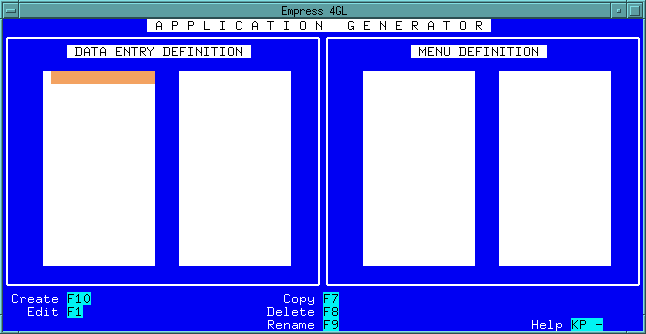 Figure 1-5 Application Generator
From here, you can define Data Entry Definitions and Menu Definitions.
For detailed information on the Application Generator, please refer to Chapter 3 - "The Application Generator".