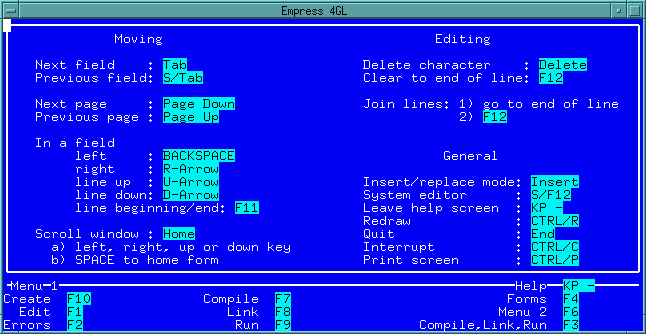
 Figure 5-1 Help Screen
When you run an application you will typically be presented with menus and data entry forms through which you interact with the application. Often you will be supplying information to the application by responding to prompts and typing data into fields. Empress 4GL comes with a Field Editor that manages the entry and editing of data in fields. The Field Editor retains the simplicity of typing and pressing the <Return>key, to which you may be accustomed, while offering you the benefits of greater control as well. The Field Editor enables you to:
5.1 Conventions of Data Entry
Data entry is a straightforward operation: the cursor is positioned at
the beginning of a field and ready to accept the data you type in.
If you are in a field that is split into several lines, your input will be scrolled from line to line. If you are in a single-line field, or on the last line of a multi-line field, you can keep typing and the data will scroll to the left and up to adjust.
Data entry begins at the left limit of the field and moves towards the right. If data entry continues when the right limit is reached, everything to the left is scrolled left. This creates hidden data beyond the left limit of the field. Using Field Editor controls it is possible to move the cursor back towards the left, until it reaches the left limit, at which point the data will start scrolling to the right. This creates hidden data beyond the right limit of the field.
A field that is split into several lines allows scrolling from line to line. Hidden data may lie to the left of the first line and to the right of the last line.
The <Return>key performs slightly different functions in replace and insert modes:
Table 5-1
| Mode | Function |
| Replace mode | Pressing the <Return>key moves the cursor to the next non-empty line in the field. Pressing the <Return>key at the last field line with data moves the cursor to the next field. Pressing the <Return>key repeatedly will take you through all the fields. |
| Insert mode | Pressing the <Return>key ends a line in a field. Pressing the <Return>key in a field consisting of several lines will break the line at the cursor and move the data (under and to the right of the cursor) down to a new line. All lines below will scroll down to adjust. If the cursor is at the beginning of a line, the effect is to open a line above the cursor. If the cursor is at the end of the last line with data, the effect is to open a line below. Although new data entry is most convenient in insert mode, you must be cautious when using the insert mode, because pressing the <Return>key will never move you to the next field. |
| Scrolling in
Insert mode |
In a single-line field, pressing the <Return>key while in insert mode and your cursor at the end of data causes the current data to scroll up. This creates "hidden" data above the line. |
5.4 The Field Editor Commands
The Field Editor is controlled using function keys and, as we saw with
the Main Menu, the assignment of function keys to commands is terminal
dependent. To find out which keys are used on your terminal, you should
press the Help key at the Main Menu and examine the Field
Editor Help screen that will appear.
The Help screen looks like this:
Figure 5-1 Help Screen
Each Field Editor command is described in the following pages.
Table 5-2
| Key | Function | |||||||||||||||||||||
| Next field | Moves the cursor to the next field in the form. | |||||||||||||||||||||
| Previous field | Moves the cursor to the previous field in the form. | |||||||||||||||||||||
| Next Page | Moves the cursor to the next page in the form. | |||||||||||||||||||||
| Previous Page | Moves the cursor to the previous page in the form. | |||||||||||||||||||||
| In a field: left | Moves the cursor one space to the left. If the cursor is at the beginning of a line, it will move to the end of the previous line. If the cursor is at the beginning of the first line, the Field Editor will beep unless there is hidden data to the left. In that case, pressing the left key causes a character of hidden data to appear under the cursor; the currently visible data will scroll to adjust. | |||||||||||||||||||||
| In a field: right | Moves the cursor one space to the right. If the cursor is at the end of a line, it will move to the beginning of the next line. If the cursor is at the end of the last line, the Field Editor will beep unless there is hidden data to the right. In that case, pressing the right key causes a character of hidden data to appear under the cursor; the currently visible data will scroll to adjust. | |||||||||||||||||||||
| In a field: line up | Moves the cursor to the previous line of the current field. If the cursor is on the first line, the Field Editor will beep, unless hidden data precedes what is visible on the line. This hidden data could be present only if you previously scrolled while on the last line of the field, driving the first line out of view. In that case, pressing the line up key causes a line of hidden data to appear on the first field line, and the following lines will scroll down. | |||||||||||||||||||||
| In a field: line down | Moves the cursor to the next line of the current field. If the cursor is on the last line, the Field Editor will beep, unless hidden data follows. In that case, pressing the line down key causes a line of hidden data to appear on the last field line, and the previous lines will scroll up. | |||||||||||||||||||||
| In a field: line
beginning/end |
Moves the cursor to the end of the current field line, unless it is already there, in which case the cursor will move to the beginning of the line. | |||||||||||||||||||||
| scroll window | Scrolls the window over the form, you may think of it as scrolling
the form under the window. This Field Editor command will not move the
window relative to the terminal screen, it will move the window across
the form. After pressing the Scroll Window key, you can specify
the kind of movement you want by pressing the appropriate direction key
appearing in the following table:
Table 5-2a
You can also move the window to home. The home position of a field or form within a window is a position that is set when a form is created. It defines the initial position of a form when it appears in a window, and of a field when it becomes current. It also provides an easy way to reposition the field or form after any scrolling. If you press the scroll window and home keys while the cursor is in a field, the field is "homed", otherwise the form is "homed". |
|||||||||||||||||||||
5.4.2 Editing
The following commands are used to edit text in the form:
Table 5-3
| Command | Function |
| Delete character | Deletes the character under the cursor. If the cursor is at the beginning of a line filled with blanks, the line is deleted. Note that a blank line is a line filled with blanks (the result of pressing the space bar), and is not the same thing as an empty or null line, which is a line that has nothing in it, not even blanks. |
| Clear to end of line | Deletes everything from the cursor position to the end of the line. If the cursor is at the end of a line that was terminated by pressing the <Return>key while in insert mode, the next line (if any) will be joined to the current line. If the cursor is anywhere on a line that scrolls on to the next line, everything to the end of the line will be deleted and the data on the next line will scroll up to replace what was deleted. |
| Join lines | Joins adjacent lines of text by moving the cursor to the end of the first line and pressing the Join Lines key. This is the same key as clear to end. |
5.4.3 General
The following commands are used to perform general functions:
Table 5-4
| Key | Function |
| Insert/replace mode | Switches the Field Editor back and forth between insert and replace modes. The default is replace mode. |
| System Editor | invokes the System Editor specified by the Empress variable MSEDITOR. If this is vi, then vi is brought up to edit the value of the field. Leave the editor in the usual way. |
| Leave help screen | This key is the same as the help key on the Main Menu. It calls the Field Editor Help screen if you need it and removes it when you are finished. |
| Redraw | Redraws the screen. This feature can be helpful if your Empress 4GL session is interrupted by mail or messages. |
| Quit | Terminates the application. This key also terminates the form and script editors when they are running, and returns the Main Menu to the screen. Pressing the Quit key from the Main Menu terminates Empress 4GL. Note that the Quit key will be reprogrammed in any application that associates a key script with the Quit key label. |
| Interrupt | Generates a key board interrupt to Empress 4GL. |
| Print Screen | Writes the current contents of the screen in ASCII or Postscript format into a file. |
5.5 Reprogramming the Field Editor
The Field Editor can be reprogrammed by using the key labels associated
with each function to define key scripts: the key script takes precedence
over the Field Editor so this effectively disables the Field Editor function.
The Field Editor function should be executed using a comparable script function in a key script for another key label. The Next field and Previous field functions are the only two Field Editor functions, in addition to the Quit function, which have counterparts as script functions, therefore, only these should be reprogrammed.