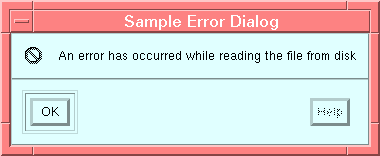
Figure 4-1 Error Dialog Box
An Empress GUI Builder application starts with a main window, a menu bar, bins, and various objects defined in the main window or in any other bin or window. For many functions, however, the application needs some kind of interaction with the user. If the user selects an item from the menu bar and needs to give some input to start an action, if the user has to pick a file from the file system to start some action on that file, if an error has occurred and the user has to be informed of that error and if the system is busy and the user has to be prompted of that fact, the application needs another transient window besides the main window to perform all these functions. These transient windows are called dialog boxes.
Dialog boxes form an important part of an Empress GUI Builder application. There are various types of dialogs available to the user in Empress GUI Builder C Application Programming Interface. There are C functions which would pop up a particular kind of dialog with extensive user customization. An Empress GUI Builder application becomes very flexible with the aid of the dialog boxes. Empress GUI Builder offers seven types of dialogs to an application. They are all accessible through simple C calls. These dialogs are:
All of the above dialogs except the info dialog and the working dialog will halt the execution of the C program until the dialog is dismissed. Dialogs behave in this manner because of their functionality. They are used to get some input from the user and the application cannot or should not continue until the user is done inputting the requisite information.
Dialog boxes are defined by certain features as to their appearance and position on the screen when they pop up. These features are called characteristics of dialog boxes. Empress GUI Builder defines the following characteristics for dialog boxes.
The style of a dialog box defines the color and the font for the dialog box. In Empress GUI Builder, the name of a dialog bin is used for style. The style associated with that dialog bin will be the style for the dialog box when it pops up. If no style is defined, then the style of the dialog box will be inherited from the main window of the current module.
Title is the heading that appears on the window bar of the dialog box. The default title is dialog_popup.
Position defines where the dialog box would pop up in relation to the main window of the current module. Empress GUI Builder defines the following positions, any of which could be used in an application.
The default position is POSITION_CENTER.
Default button defines the button that would be highlighted when the dialog box pops up. Hitting the <Return> key when the dialog box pops up would activate the default button. Empress GUI Builder defines the following default buttons. They are numbered from left to right as they would appear in the dialog box. Thus, left most button is DEFAULT_BUTTON_1 and so on.
If a default button is not specified then DEFAULT_BUTTON_1 will be the default button.
The following sections describe each of these dialogs in detail. They also explain the C routines which would pop up these dialogs.
An error dialog can be used by an Empress GUI Builder application to inform the user that an error has occurred. An application can control the style, the position and the title of the error dialog box. An error dialog box would have the error icon and two buttons, OK and Help. OK button is used to dismiss the error dialog while the Help button is used to call a help module. The Default button is the OK button.
If the help module is defined and its name is provided in the function call to create the error dialog, that help module will be called when the Help button is activated. The message that informs the user of the actual error is stored in the text string. This string will be displayed inside the error dialog box. Passing a null value for the text string will cause no text to be displayed in the error dialog box.
Example
In an application, an error dialog box is needed if an error occurs and the user needs to be informed of that error. Variable declaration for the dialog part could be as follows:
char *style = "dialog_bin_name";
char *title = "Sample Error Dialog";
char *text = "An error has occurred while reading the file from
disk";
int position = POSITION_CENTER;
char *help = (char *)0;
The call to pop up the dialog box would be as follows:
status = empgui_c_dialog_error (style, title, text, position, help);
The error dialog box that pops up after this call is shown in Figure 4-1.
Figure 4-1 Error Dialog Box
In the file selection box, the initial directory of the file selection box, the mask filter that will be applied to the files in the current directory, the label of the Apply button, and the label of the files box in the file selection box can also be customized. Default directory is the directory the application resides, default mask is "*", to select all files, default label for the Apply button is"Apply," and default label for the files box is "Files." If a null value is passed for the apply string called apply_text in the argument list, the Apply button will not be displayed. Null values for the directory, the text for the label of the files box in the file selection box and the mask do not make any difference.
The application can also define and specify the function that will be called when the user hits the Apply button. Mask filter can be further refined by passing its output to another filesearch function. Output of the filesearch function will then be displayed in the files box. If a null value is passed for the apply function, the Apply button is permanently disabled. Null value for the filesearch routine will result in displaying the output of the mask filter in the files box without any further filtering. The apply function and the filesearch function are defined as follows.
void apply(apply_string)
where:
| char *apply_string | string in the selection box when the Apply button was hit |
where:
| char *search_filename | filename that passes successfully through the mask filter each file is passed through this function and only those files for which this function returns true are displayed in the files box |
In an application, a file selection dialog box is needed if the user needs to pick a file from the disk. Variable declaration for the dialog part could be as follows:
char *style = "dialog_bin_name";
char *title = "File Selection";
char *text = "Special Files";
int position = POSITION_CENTER;
int def_button = DEFAULT_BUTTON_1;
char *apply_text = "APPLY";
char *directory = "/tmp";
char *mask = "*.c";
char *filename;
Assuming that apply and filesearch has been defined before, the call to pop up the dialog box would be as follows:
status = empgui_c_dialog_file_selection (style, title, text, position,
def_button, apply_text,
directory, mask, apply, filesearch,
&filename);
The file selection dialog that pops up after this call is shown in Figure
4-2.
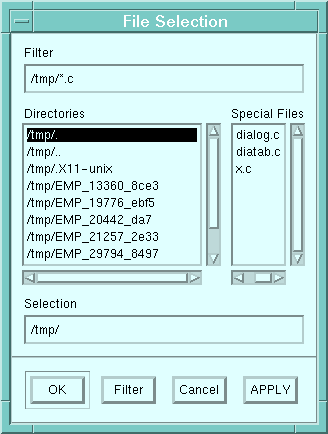
Figure 4-2 File Selection Dialog Box
An info dialog can be used by an Empress GUI Builder application to inform the user of anything significant. An application can control the style, the position, and the title of the dialog. An info dialog will have the info icon, " i", and two buttons, OK, and Help. Clicking on the OK button will dismiss the dialog box. Help button is permanently disabled.
The actual message of the dialog is stored in the text string in the arguments of the function to create the info dialog. If a null string is passed for text, no text will be shown in the dialog box.
gui_status empgui_c_dialog_info (style, title, text, position)
Example
In an application, an info dialog box is needed if something happens and the user needs to be informed of that. Variable declaration for the dialog part could be as follows:
char *style = "dialog_bin_name";
char *title = "Info Dialog";
char *text = "This is Empress 6.4 with GUI 1.0";
int position = POSITION_CENTER;
The call to this routine would be as follows:
status = empgui_c_dialog_info (style, title, text, position);
The info dialog that pops up after this call is shown in Figure 4-3.
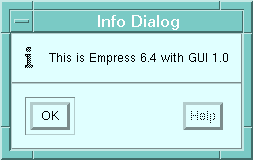
Figure 4-3 Info Dialog Box
A prompt dialog can be used by an Empress GUI Builder application to allow the user to input any information to the application. An application can control the style, the position, the default button, and the title of the prompt box. A prompt dialog will have three buttons, OK, Cancel, and Help. Activating the OK button will close the dialog box and return the string in the prompt box to the user string called string in the arguments for the function to create the dialog. Clicking on the Cancel button will close the dialog box and return a null pointer to the user string. Hitting the Help button will call the help module. Default button is the OK button.
If the help module is defined and its name is provided in the function call to create the prompt dialog, that help module will be called when the Help button is activated. Prompt dialog also lets the user put any label on top of the prompt box. This label is stored in a string called text in the arguments for the function to create the prompt dialog. If a null string is passed for text, no text will be shown in the prompt dialog box. An application can also put a default prompt in the prompt box. This feature could be used to avoid the user having to type a prompt. The default prompt is stored in a string called init_text in the arguments for the function to create the prompt dialog. Passing a null string for init_text in the argument list will cause the prompt field to be initially empty.
Example
In an application, a prompt dialog box is needed if the user needs to input some information to the program. Variable declaration for the dialog part could be as follows:
char *style = "dialog_bin_name";
char *title = "Prompt Dialog";
char *text = "Please enter the filename";
int position = POSITION_CENTER;
int def_button = DEFAULT_BUTTON_1;
char *init_text = "/tmp/action.c";
char *help = (char *)0;
char *string;
The call to pop up the dialog box would be as follows:
status = empgui_c_dialog_prompt (style, title, text, position,
def_button, init_text,
help, &string);
The prompt dialog that pops up after this call is shown in Figure 4-4.
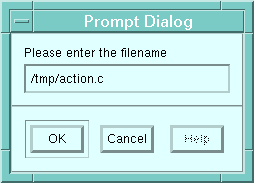
Figure 4-4 Prompt Dialog Box
A question dialog can be used by an Empress GUI Builder application to get some information from the user by asking a question and getting the answer by a click of a button. The application can put the question in the label and the two possible answers on the buttons. The User would then pick the appropriate button. An application can control the style, the position, the default button, and the title of the question dialog box. A question dialog box would have the question icon "?", and three buttons. Two user buttons and a Help button. Clicking on either of the user buttons will dismiss the dialog and return the label of that button to the user string called string in the arguments for the function to create this dialog. Hitting the Help button will call the help module. The default button is the first button.
If the help module is defined and its name is provided in the C API function call to create the question dialog, that help module will be called when the Help button is activated. An application can put a customized label in the dialog box. Usually this label is in form of a question. The label is stored in a string called text in the arguments for the function to create this dialog. Passing a null value for text will cause the question dialog to display no text. An application controls the labels of the two buttons by putting them in the strings but1 and but2 in the arguments for the function to create the question dialog. Passing a null string for either but1 or but2 will cause that button to be removed from the question dialog box.
Example
In an application, a question dialog box is needed if the user needs to be asked something specific in form of a question. Variable declaration for the dialog part could be as follows:
char *style = "dialog_bin_name";
char *title = "Question Dialog";
char *text = "Would You Like to Stop or Continue?";
int position = POSITION_CENTER;
int def_button = DEFAULT_BUTTON1;
char *but1 = "Stop";
char *but2 = "Continue";
char *help = (char *)0;
char *string;
The call to pop up the dialog box would be as follows:
status = empgui_c_dialog_question (style, title, text, position,
def_button,but1,
but2, help, &string);
if ( (strcmp(string,but1)) == 0 )
{
printf("User wants to stop the program.\n");
exit (0);
}
The question dialog that pops up after this call is shown in Figure
4-5.
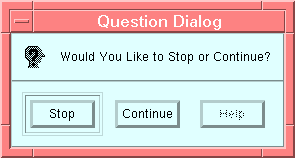
Figure 4-5 Question Dialog Box
A warning dialog can be used by an Empress GUI Builder application when the user has done something he was not supposed to do and before taking any drastic action, the application needs to get some information from the user by asking a question and getting the answer by a click of a button. The application can put the question in the label and the two possible answers on the buttons. User would then pick the appropriate button. An application can control the style, the position, the default button, and the title of the warning dialog box. A warning dialog box would have the warning icon "!", and three buttons. Two user buttons and a Help button. Clicking on either of the user buttons will dismiss the dialog and return the label of that button to the user string called string in the arguments for the function to create this dialog. Hitting the Help button will call the help module. Default button is the first button.
If the help module is defined and its name is provided in the C API function call to create the warning dialog, that help module will be called when the Help button is activated. An application can put a customized label in the dialog box. Usually this label is in form of a question. This label is stored in a string called text in the arguments for the function to create this dialog. Passing a null value for text will cause the warning dialog to display no text. An application controls the labels of the two buttons by putting them in the strings but1 and but2 in the arguments for the function to create the warning dialog. Passing a null string for either but1 or but2 will cause that button to be removed from the warning dialog box.
Note that the only difference between a question and a warning dialog box is the icon in the dialog box. In case of a question dialog box, it is a question mark and in case of a warning dialog box, it is an exclamation mark.
Example
In an application, a warning dialog box is needed if the user needs to be asked something specific in form of a question after the user has asked the application to take a drastic action. Variable declaration for the dialog part could be as follows:
char *style = "dialog_bin_name";
char *title = "Warning Dialog";
char *text = "Would You Like to Stop or Continue?";
int position = POSITION_CENTER;
int def_button = DEFAULT_BUTTON1;
char *but1 = "Stop";
char *but2 = "Continue";
char *help = (char *)0;
char *string;
The call to pop up the dialog box would be as follows:
status = empgui_c_dialog_warning (style, title, text, position,
def_button,
but1, but2, help,
&string);
if ( (strcmp(string,but1)) == 0 )
{
printf("User wants to stop the program.\n");
exit (0);
}
The warning dialog that pops up after this call is shown in Figure 4-6.
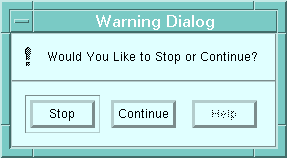
Figure 4-6 Warning Dialog Box
A working dialog can be used by an Empress GUI Builder application when the user needs to be prompted of the fact that some work is going on in the background. A working dialog is usually popped up during the duration of the work and is very helpful for the user. An application can control the style, the position, and the title of the dialog. A working dialog would have the working icon, (an hour glass), and a label.
An application can control the label in the working dialog. This label is called text in the function call to create this dialog. Passing a null value for text will cause the info dialog to display no text.
After the background job is finished, the working dialog needs to be popped down. C API provides a function empgui_c_dialog_working_trash() to remove a working dialog. In the call to the function to create a working dialog, the application passes the address of a parameter called dialog. Empress GUI Builder puts the id of the created working dialog in this parameter. This same parameter is used by empgui_c_dialog_working_trash() to remove the working dialog.
Example
In an application, a working dialog box is needed if process is going on and the user needs to be informed of that error. Variable declaration for the dialog part could be as follows:
char *style = "dialog_bin_name";
char *title = "Working Dialog";
char *text = "Reading Data From Disk";
int position = POSITION_CENTER;
addr dialog;
The call to pop up the dialog box would be as follows:
status = empgui_c_dialog_working (style, title, text, position, &dialog);
The warning dialog that pops up after this call is shown in Figure 4-7.
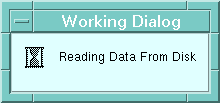
Figure 4-7 Working Dialog Box
To remove the working dialog, later on in the program:
status = empgui_c_dialog_working (dialog);