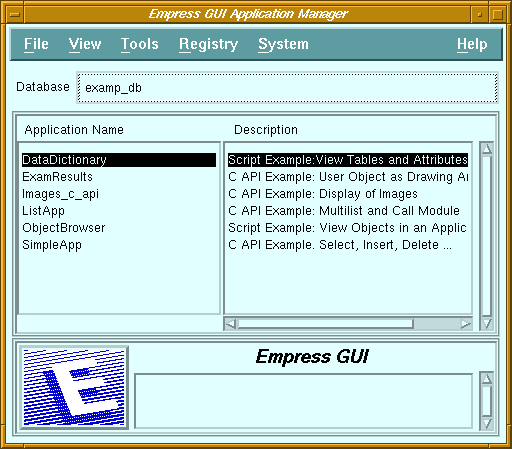
Called From
Calls
Menu Options
| File | |||
| New | Create a new application. It will automatically have a new module with the same name, and the module will contain a main window. If there is already a module with that name, then the new module name will have a three digit extension. | ||
| Create Default Application | Generate a default application based on a table in the database. | ||
| Copy | Make a copy of an existing application (which can be from another database). Only the definition of the application is copied. Modules and their contents are not copied. | ||
| Delete | Delete the selected application. Only the definition of the application is deleted. Modules and their contents are not deleted. | ||
| Rename | Change the name the selected application. | ||
| Properties | Invoke the Application Editor on the selected application. | ||
| Compile | Compile module(s) of the selected application. | ||
| Link | Link compiled modules in selected application. | ||
| Run | Run the selected application. | ||
| Run with parameters | Run the selected application, with parameters obtained from a dialog box. | ||
| Compile, Link & Run | Compile and link modules, then execute the selected application. | ||
| Change Database | Select another Empress database to work with. The database must have been initialized for use with Empress GUI Builder. | ||
| View | |||
| Refresh | Re-display the list of application names and descriptions. | ||
| Clear Filters | Remove filter (and display complete list of applications in database). | ||
| Set Filters | Apply filter (name and/or description) to list of applications. | ||
| Tools | |||
| Application Module Manager | Invoke the Application Module Manager, to work with modules included in the selected application. | ||
| Module Manager | Invoke the Module Manager, to display all modules in the database. | ||
| MAINWIN Component Editor | Invoke the Window Component Editor to edit the contents of the main window of the main module of the selected application. | ||
| Registry | |||
| Checkout | |||
| Read | Check-out the selected application for read. | ||
| Update | Check-out the selected application for update. | ||
| Checkin | Check-in the selected application. | ||
| Administration | Invoke the Registry Manager, to see which applications and modules have been checked out. | ||
| System | |||
| Empress SQL | Start an Empress SQL session on the current database. | ||
| xterm | Open an "xterm" window using the shell specified by the Empress system variable MSSHELL. | ||
Screen Elements
| Database | Name of the current database, set by File , Change Database menu option. |
| Application Name | Scrollable list of applications contained in the current database. |
| Description | Descriptive comments for the corresponding applications. |
| Message field | See Chapter 2 - "Common Elements of Empress GUI Builder Screens". |
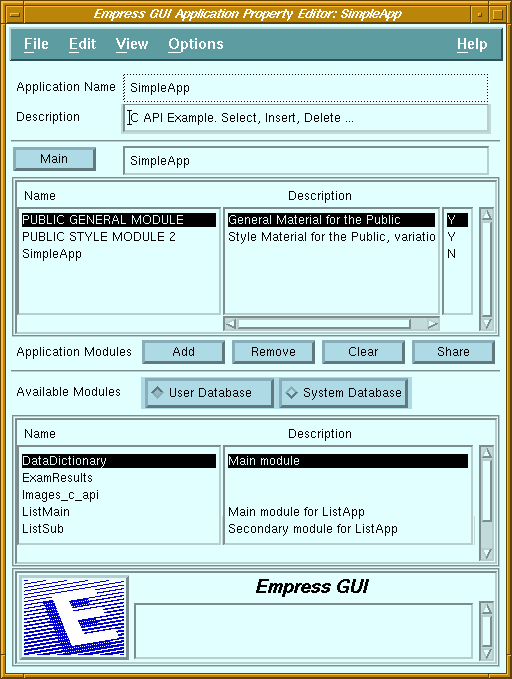
Modules can be selected from the system database or the user's application database. The source is specified by the radio buttons above the list of available modules. Selected modules can be added to or removed from the application's list of modules, and their shareable status can be set by clicking on the appropriate push buttons.
An application must have a main module, which is invoked when the application
is started.
Called From
Calls
Menu Options
| File | ||
| Compile | Compile module(s) of application. | |
| Link | Link compiled modules in application. | |
| Run | Run the application. | |
| Run with parameters | Run the application, with parameters obtained from a dialog box. | |
| Compile, Link & Run | Perform compilation, linking and then execute the application. | |
| Save | Save the changes to the database. | |
| Save & Exit | Save the changes, exit the current screen and return to the screen that invoked it. | |
| Exit | Close the current screen and return to the screen that invoked it. | |
| Edit | ||
| Clear | Clear description and main module fields. | |
| Reset | Reset description field, main module field and list of application modules to original values. | |
| View | ||
| Refresh | Re-display the list of available modules and descriptions. | |
| Clear Filters | Remove filter and display complete list of available modules. | |
| Set Filters | Apply filter for name and/or description to list of available modules. | |
| Options | ||
| Default style setup | Invokes the default style setup screen. | |
Fields
| Application name | Name of current application, set on entry. |
| Description | Descriptive comment for the application. |
Application Modules
| Main field | Displays the main module name. |
| Name | List of the modules included in this application. |
| Description | Descriptive comment for the corresponding module |
| Shareable | Shareable status of modules. If a module is shareable, other modules in the application will have access to objects (such as actions, hypertext documents, styles ...) that it contains. |
Push Buttons
| Main | Make selected application module become the main module, i.e., the first module which is executed when the application is started. |
| Add | Add selected module in list of available modules to application's list of modules. |
| Remove | Remove selected module from application's list of modules. (The module is not deleted from the database.) |
| Clear | Remove all modules from application's list of modules. |
| Share | Toggle the shareable status of selected application module. |
Radio Buttons
| User Database | Modules contained in user's database will be displayed in Available Modules list. |
| System Database | Modules contained in system database will be displayed in Available Modules list. |
Available Modules
| Name | List of all the modules in the database specified. |
| Description | Descriptive comment for the corresponding modules. |
| Message field | See Chapter 2 - "Common Elements of Empress GUI Builder Screens". |
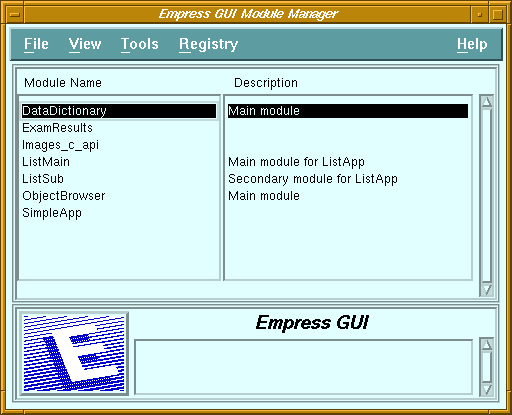
| File | |||
| Copy | Copy a module and all objects contained in it. A dialog box allows the user to specify the module to be copied, even if it is in another database. | ||
| Delete | Delete the selected module and all the objects it contains. | ||
| Rename | Change the name of the selected module. | ||
| Compile | Compile the selected module. | ||
| Exit | Return to the Application Manager screen. | ||
| View | |||
| Refresh | Re-display the list of modules in the database. | ||
| Clear Filters | Remove filter (and display complete list of modules). | ||
| Set Filters | Apply filter (name and/or description) to list of modules. | ||
| Tools | |||
| Module Checker | Invoke the Module Checker to verify the contents of the selected module. | ||
| Registry | |||
| Checkout | |||
| Read | Check-out the selected module for read. | ||
| Update | Check-out the selected module for update. | ||
| Checkin | Check-in the selected module. | ||
| Administration | Invoke the Registry Manager, to see which applications and modules have been checked out. | ||
| Module Name | List of modules in the user's database. |
| Description | Descriptive comments for the corresponding modules. |
| Message field | See Chapter 2 - "Common Elements of Empress GUI Builder Screens". |
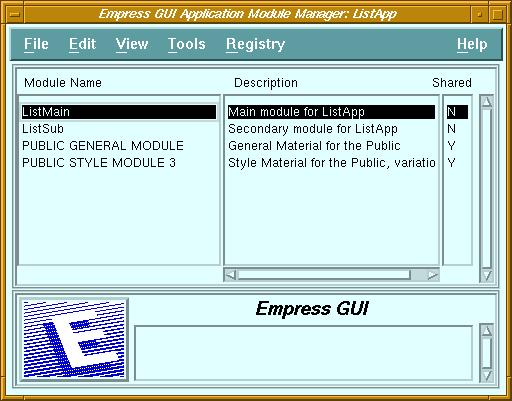
Purpose
Allows editing of the properties of modules. Calls editors and managers for various objects contained in the modules. Note that system modules cannot be modified by the user.
In general, a module can be executed, in which case it must have a main window which will become the top-level window. Modules can also be used as a library, containing objects (actions, pixmaps, styles etc.) which are re-usable by other modules. In such cases, the module must be shareable, so that other modules have access to its contents.
Double-clicking on a module name in the list will invoke the Window
Manager on the selected module.
Called From
| File | |||
| New | Add a new module to the database. The new module will contain a main window. | ||
| Copy | Copy a module and all objects contained in it. The new module is automatically included in the current application. | ||
| Delete | Delete the selected module and all the objects it contains. | ||
| Rename | Change the name of the selected module. | ||
| Properties | Invoke the Module Property Editor. | ||
| Compile module | Compile the selected module. | ||
| Compile application | Compile all modules in current application. | ||
| Link | Link compiled modules in current application. | ||
| Run | Run the current application. | ||
| Run with parameters | Run the application, with parameters obtained from a dialog box. | ||
| Compile, Link & Run | Perform compilation, linking and then execute the application. | ||
| Save | Save the changes to the database. | ||
| Save & Exit | Save the changes and return to the Application Manager screen. | ||
| Exit | Return to the Application Manager screen. | ||
| Edit | |||
| Share | Toggle the shareable status of the selected module. | ||
| View | |||
| Refresh | Re-display the list of modules in the application. | ||
| Clear Filters | Remove filter (and display complete list of modules in application). | ||
| Set Filters | Apply filter (name and/or description) to list of modules. | ||
| Tools | |||
| Action | Invoke the Action Manager. | ||
| Bin | Invoke the Bin Manager. | ||
| Hypertext | Invoke the Hypertext Manager. | ||
| Pixmap | Invoke the Pixmap Manager. | ||
| Style | Invoke the Style Manager. | ||
| Window | Invoke the Window Manager. | ||
| MAINWIN Component Editor | Invoke the Window Component Editor on the main window of the selected module. | ||
| Registry | |||
| Session Checkout | |||
| Enable for Read | Check-out selected module for read. | ||
| Enable for Update | Check-out selected module for update. | ||
| Disable | Disable explicit check-out. | ||
| Administration | Invoke the Registry Manager, to see which applications and modules have been checked out. | ||
| Module Name | List of modules included in the application. |
| Description | Descriptive comment for the corresponding modules. |
| Shareable indicator | The shareable status of modules: "Y" for shareable, "N" for non-shareable. If a module is shareable, other modules in the application will have access to objects (such as actions, hypertext documents, styles ...) that it contains. |
| Message field | See Chapter 2 - "Common Elements of Empress GUI Builder Screens". |
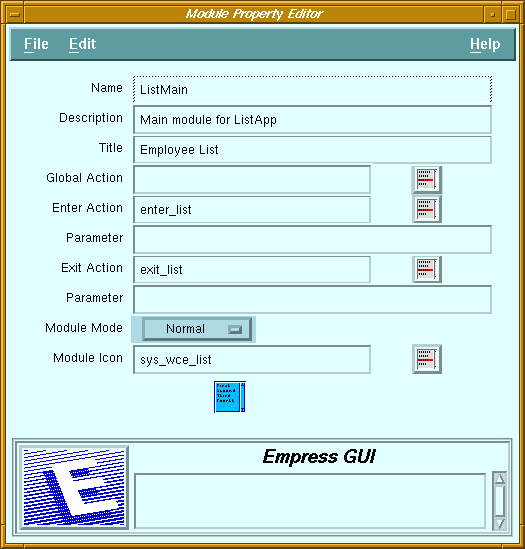
| File | ||
| Run | Run the current application. | |
| Run with parameters | Run the application, with parameters obtained from a dialog box. | |
| Save | Save the changes to the database. | |
| Save & Exit | Save the changes, and return to the Application Module Manager. | |
| Exit | Return to the Application Module Manager. | |
| Edit | ||
| Clear All Fields | Clear the contents of all editable fields. | |
| Reset All Fields | Reset contents of fields to original values. | |
| Name | Name of the module. |
| Description | Descriptive comment for the module |
| Title | Text which will appear on title bar of module main window frame. |
| Global Action | Script action which contains global variable declarations. (Not applicable for C API actions). |
| Global Action button | To display a list of actions available in the current module as well as other shareable modules in the application. Selecting one of these actions will cause its name to be entered in the Global Action field. |
| Enter Action | Action to be invoked whenever the module is called. This is useful for initialization steps. For example, in a script action, it would be used for opening tables, declaring cursors to be used by the module etc. |
| Enter Action button | To display a list of actions available. Selecting one of these actions will cause its name to be copied to the Enter Action field. |
| Parameter | Optional constant string passed as argument to the enter action when it is called. |
| Exit Action | Action to be invoked whenever the module is exited. This is useful for cleaning up purposes such as closing tables. |
| Exit Action button | To display a list of actions available. Selecting one of these actions will cause its name to be copied to the Exit Action field. |
| Parameter | Optional constant string passed as argument to the exit action when it is called. |
| Module Mode | Specifies where the module main window will appear relative to the main window of the calling module. For the main module of an application, the mode should be set to " Normal ". |
| Module Icon | Pixmap to be displayed when the module main window is iconified (minimized). |
| Message field | See Chapter 2 - "Common Elements of Empress GUI Builder Screens". |
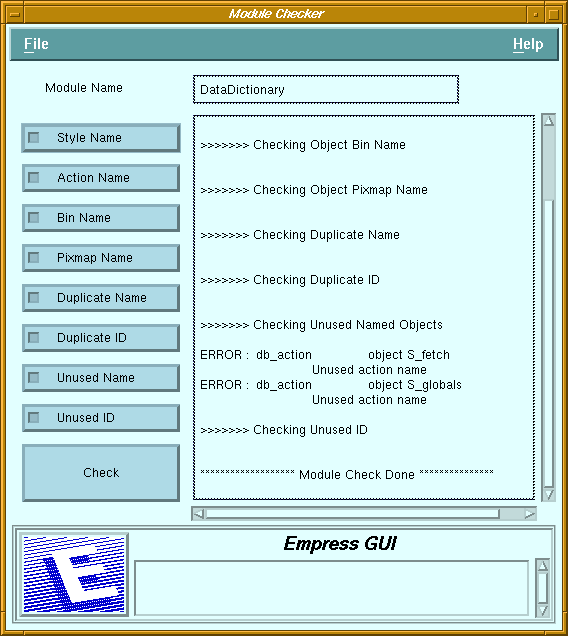
The Module Checker only deals with a single module at a time. It will
not find out whether an object used in a module is defined in another module.
Toggle buttons allow several types of checking to be selected, and the
result is displayed in a Scrollable text field.
Called From
| Module Name field | Name of module being checked. |
| Scrollable field | Non-editable field which displays the results of the module checker. |
| Toggle buttons | ||
| Style Name | Check if named styles used by objects can be found. | |
| Action Name | Check if actions assigned to objects can be found. | |
| Bin Name | Check if bins associated to objects can be found. | |
| Pixmap Name | Check if pixmaps assigned to objects can be found. | |
| Duplicate Name | Check if several objects of the same type have the same name. | |
| Duplicate ID | Check if several objects of the same type have the same ID. | |
| Unused Name | Check if named objects (such as a style) are not used. | |
| Unused ID | Check if style IDs are not used. | |
| Check push button | Click to start the checking process. | |
| Message field | See Chapter 2 - "Common Elements of Empress GUI Builder Screens". | |