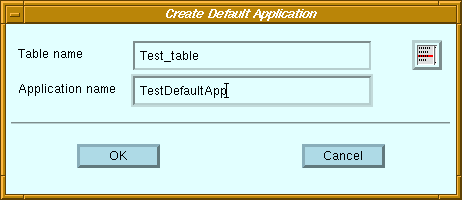
It is a tool that creates an application based on a given table. It automatically creates fields for the attributes in the table, and provides pushbuttons to perform database operations on the table. All the actions in the application are written using the Script language, and the user has the liberty to modify the application created.
Purpose
After creating the application, its name is added to the list in the Application Manager.
Called From
Screen Elements
| Table Name | Field for specifying the name of the table on which to create the default application. |
| Table Name button | Displays a list of existing tables in the current database, and allows one of the tables to be selected. |
| Application Name | Field for specifying a name for the application to be created. |
| OK button | Create the default application on the table specified and return to the Application Manager. |
| Cancel button | Return to the Application Manager without creating the application. |
8.3.1 Modules in the Application
The Default Application consists of four public modules, and a main module
with the same name as the application (it may have a numeric extension,
if there already is a module with that name).
Only the main module is in the user's database. The four public modules are linked from the Empress GUI Builder system database. Three of these public modules (PUBLIC GENERAL MODULE, PUBLIC HELP MODULE, PUBLIC STYLE MODULE) are also commonly included in other applications.
The fourth public module (PUBLIC DEF APPL MODULE) is only included in default applications.
It contains styles used by components and windows in the application: field styles, label styles, multilist styles, push button styles, separator styles and window styles.
It also contains several hypertext documents used by the Help module, when called from the application's menu bar.
And finally, it contains several script actions which are used to perform the database operations. These actions are defined in such a way that they do not contain the name of the table or its attributes, and hence they can be used by any default application.
It also has a menu bar with four pulldown menus: File, List, Record, and Help.
It only has two actions. These actions are customized for each default application, since they contain the name of the table and its attributes.
Below this title, it contains a multilist to display the first four attributes of the table. If the table has less than four attributes, then the multilist will the same number of columns as attributes in the table. Above each column of the multilist, a label displays the name of the corresponding attribute.
On the right side of the main window, there are several push buttons to activate the actions.
It contains one label and one field for each attribute in the table.
The label contains the name of the attribute (up to 15 characters), while
the field is used to display/enter values for the attribute. The properties
of the field depends on the data-type of the associated attribute:
| Attribute Data Type | Field Properties |
|
|
|
| CHAR, INTEGER, SHORTINTEGER, LONGINTEGER, FLOAT, REAL, LONGFLOAT, DOLLAR, DECIMAL, DATE, TIME | Single line, no word-wrap |
| CHAR (longer than 32) | Single line, with horizontal scrollbar |
| TEXT, BULK | Two lines, word-wrap, with vertical scroll bar |
|
|
|
8.3.6 Push Buttons in MAINWIN
The main window has six push buttons. Two push buttons are on the right
of the multilist, and the other four are on the right of the Record window.
These buttons are:
| Choose | The selected record in the multilist is displayed in the Record window. It becomes the current record. |
| Delete | Delete the selected record in the multilist. |
| Match | The values entered in the fields of the Record window are used as filters. Only records with attributes matching these search conditions are displayed in the multilist. |
| Clear | Clear all the fields in the Record window. |
| Insert | Insert a new record in the table, using the values in the fields of the Record window. |
| Update | Update the current record in the table, using the values in the fields of the Record window. |
| File | ||
| Exit | Leave the default application. | |
| List | ||
| Choose | The selected record in the multilist is displayed in the Record window. It becomes the current record. | |
| Delete | Delete the selected record in the multilist. | |
| Record | ||
| Match | The values entered in the fields of the Record window are used as filters. Only records with attributes matching these search conditions are displayed in the multilist. | |
| Clear | Clear all the fields in the Record window. | |
| Insert | Insert a new record in the table, using the values in the fields of the Record window. | |
| Update | Update the current record in the table, using the values in the fields of the Record window. | |
| Help | ||
| Help | Call the help module to get information on how to use the default application. | |