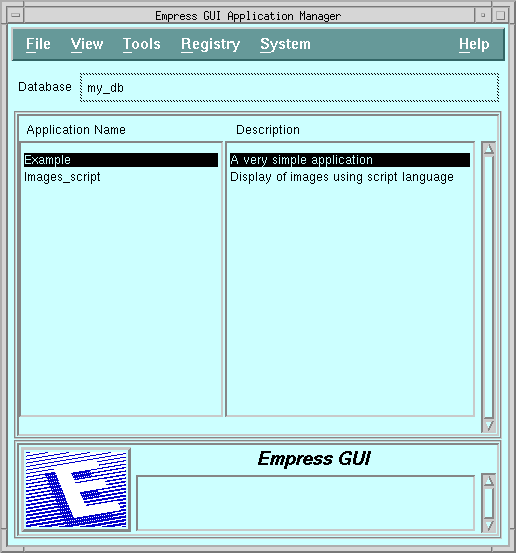
Figure 1-1 Application Manager
Empress GUI Builder is an object-oriented application development environment or application builder which consists of a fundamental programming language and a set of tools to help you develop high impact, visual, multimedia applications using a Graphical User Interface (GUI) under X Window and Motif.
Empress GUI Builder currently provides two types of Application
Programming Interfaces (API), a script API and an open C API, and uses
the following objects as building blocks to construct complex applications
which may be used as prototypes or finished products.
|
|
Empress GUI Builder development tools consist of the following:
Empress GUI Builder has many different objects available for inclusion in applications. Several types of menus can be built including pull-down, pop-up, option and cascading menus. Toggle buttons, dialog boxes, lists, and sliding scales are also provided. Professional-looking hypertext help screens can be built into the application; the formatted text can have clearly coded link words, which, when clicked, can bring up more information.
Empress GUI Builder also provides image fields and audio fields which format and present image and audio data without the need for complicated application programming. They can be used to display several images at once or image and sound simultaneously. This simplifies the building of multimedia applications.
The Empress GUI Builder provides total control over the color, function and placement of visual elements such as windows, borders, scroll bars, buttons, labels, lists, fields, and menus. Developers can size and scale these objects with the same point-and-click ease as desktop drawing software. Plus they can create, name and apply visual styles of their own choosing to make the look of the application consistent and standardized. Objects within one application or across all applications can “inherit” styles set up by the programmer. Object inheritance greatly reduces the time needed for application development.
The Empress GUI Builder eliminates the need to program the look of the user interface of an application. Programming is only required for performing systems operations, database access or to manipulate data.
The actions associated with push buttons, fields, menus or dialog boxes can be programmed using the Empress GUI Builder Script API. This language is designed for power and ease of use within the Empress GUI Builder environment.
Alternatively, the Empress GUI Builder C API can be used to write actions with C programs using dynamic SQL. The Empress GUI Builder is open to a remarkable degree because almost any executable can be called and run within the application.
To develop Empress GUI Builder applications, the following facilities are necessary:
You may need more information about the X Window System. The series of X Window System manuals published by O'Reilly & Associates is an excellent source of reference, in particular:
The definitive reference for Motif topics is the series of OSF/Motif Guides from the Open Software Foundation published by Prentice-Hall.
empginit databasewhere:
| database | is any valid database name |
Example
To initialize the database my_db, type the following:
empginit my_dbIf empginit fails:
1.5.2 Starting Empress GUI Builder
To invoke Empress GUI Builder, use the following command
at the operating system level:
empgui databasewhere:
| database | is any valid database name previously initialized for use with Empress GUI Builder. |
To invoke Empress GUI Builder on the database my_db, type the following:
empgui my_dbIf the Empress GUI Builder screens do not come up, there are a few things to check:
DISPLAY=:0.0If it is not the console but another terminal on the network, it should be set to the machine name followed by :0.0. For example, for a terminal on the machine called zinc:
DISPLAY=zinc:0.0
Xlib: Client is not authorized to connect to ServerThen you must use the xhost command on your display machine to allow the empgui process (the X client) to display on your console (the X server).
You may encounter other situations in which windows do not appear properly, (e.g. only an outline becomes visible). These will probably be caused by variations in window managers and window manager configurations. For example, if you see a wire frame outline of the window instead of the Empress logo, then you must click to place the window (and all subsequent windows) before the window is shown. Refer to the “X Windows System User’s Guide” which discusses display environments and option settings such as DISPLAY.
After invoking Empress GUI Builder, you should see the Empress GUI Builder logo screen followed by this screen:
Figure 1-1 Application Manager
Notice the window title at the top of the screen, “Empress GUI Builder Application Manager”. You will see the name of the database, along with a list of application names and descriptions. Two small example applications, Example and Images_script have been provided.
To exit Empress GUI Builder, click on File from the menu bar of the Empress GUI Builder Application Manager screen then click on Exit from the pull-down menu. This will bring you back to the operating system level.
Figure 1-2 Application Manager
As an exercise, let us explore some of the areas of this screen.
Note
Certain terms used throughout this manual such as click, select, drag, etc., are specifically related to mouse key actions. If you are not familiar with these terms, please refer to the section on “Mouse Buttons and Actions” in Appendix A.
Underneath the title “Empress GUI Builder Application Manager” is a menu bar which looks like any other standard Motif menu bar. The Help menu is located on the right.
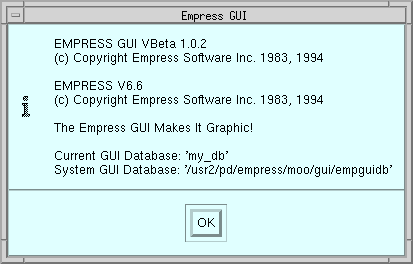
Figure 1-3 Information Dialog Box
Click OK to acknowledge the information dialog, and you should be returned to the Application Manager screen.
Click on Help, pull-down and click on Help again to see Empress’ hypertext help. You will see the following screen, which gives help on the Empress GUI Builder Application Manager.
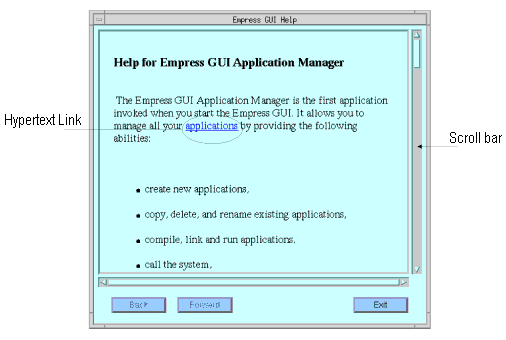
Figure 1-4 Help Screen
Note the scroll bar on the right side of the help screen, which can be used to navigate forwards and backwards through the help text.
Within the help screen, words or phrases which appear underlined and in a different color are hypertext links to other help screens. You can click on any link word or phrase to bring up additional help. In this way you can receive help in the areas you want to the depth you want.
The push buttons on the bottom of the help screens work this way:
| Back | Returns you to the previous help screen. This button is disabled (or insensitive) if this is the first help screen, (i.e., you have not yet followed any links). |
| Forward | Brings you forward to the next help screen. This button is disabled (or insensitive) if there are no more help screens available. |
| Exit | Exits from help. |
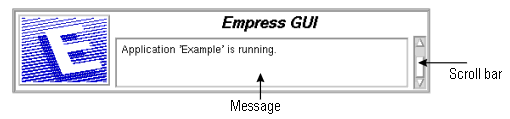
Figure 1-5 Empress Message Area
At this point, there are probably no messages in the message area.
1.7.2.1 Sample Applications
Two example programs are provided when you initialize an Empress
GUI Builder database. We have provided these examples to illustrate
the use of some simple windows, actions (scripts), help screens and styles.
To run the simple application, Example:
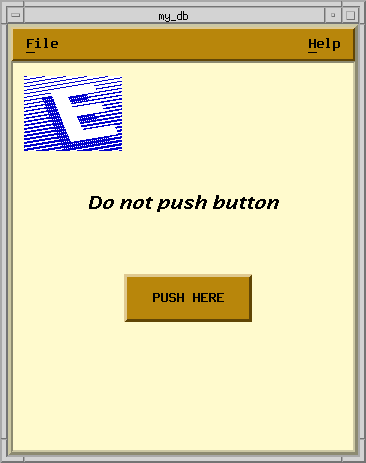
Figure 1-6 Example Application
If you succumb to the temptation to push the button, click on OK to acknowledge the dialog box that appears.
You may see the help for this application by clicking on Help, Help on the menu bar.
To leave the application, click on File (in the Example window’s menu bar), then click on Exit from the pull-down menu. You should be returned to the Application Manager screen.
To run the application, Images_script:
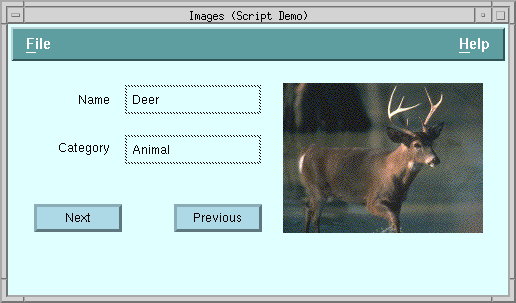
Figure 1-7
Click on the Next and Previous push buttons to view the images.
You may click on Help, Help to retrieve the hypertext help screens. By further clicking on colored and underlined words within the help screen, you will follow hypertext links to other help screens, or to other positions within the same help screen. You can use the scrollbar on the right-hand side of the screen to scroll within the document—simply click and drag the lightened slider part down the scrollbar to scroll through the document. Use the Forward and Back push buttons to go to the next and previous screens and the Exit push button finally to exit from Help.
To leave the application, click on File then click on Exit from the pull-down menu in the application’s window. This will bring you back to the Empress GUI Builder Application Manager screen.
| Setting of MSGUISYSMAIN | Screens | Menu Bar |
| MSGUISYSMAIN = unset -(default) | cyan4 | dark salmon |
| MSGUISYSMAIN = 2 | cornflower blue | royal blue3 |
| MSGUISYSMAIN = 3 | azure4 | rosy brown |
| MSGUISYSMAIN = 4 | light cyan | cadet blue |
For example, in the UNIX C shell:
setenv MSGUISYSMAIN 3or in the UNIX Bourne or Korn shells:
MSGUISYSMAIN = 3
export MSGUISYSMAINAfter the variable is set in your environment, invoke empgui:
empgui my_dbDo not set the variable to a value outside the specified range. If you do so, when you try to start Empress GUI Builder, it will not run and you will get an error message. For example, if you set MSGUISYSMAIN to 5, you will see:
*** User Error *** application ‘sys_main_5’: application cannot be foundPlease note that different X servers may have different sets of known colors, or may have different RGB (red, green blue) mappings for colors. Therefore, the actual color schemes of the Empress GUI Builder may vary somewhat from X terminal to X terminal. The variable MSGUISYSMAIN exists in the file $EMPRESSPATH/config/initfile. This file may be edited to reflect the chosen color set for the Empress GUI Builder. If the initfile is edited, the new color set will be invoked for all Empress GUI Builder users on the system. If, in contrast, you set the variable in your Unix environment, it affects only the color of your Empress GUI Builder environment.
Note
Once you are familiar with Empress color styles, you will be able to edit the standard color sets or add new ones to choose precisely the colors you want in your Empress GUI Builder environment.
Empress GUI Builder provides a Default Application Generator which creates an application by the click of a single button. This application allows users to perform basic SQL functions on a given table.
The Default Application Generator is a good place for Empress GUI Builder developers to start exploring the Empress GUI Builder. You can modify the application by modifying the code generated by the Default Application Generator. But before doing this or before you create an application from scratch, you need to know the concepts behind Empress GUI Builder and its components. Chapter 2 will show you how to create an application using the Default Application Generator and the subsequent chapters will explain the concepts and the components of Empress GUI Builder.