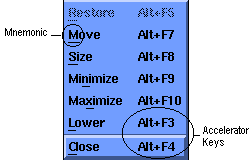
Figure A-1
Throughout this manual are some terms used which are related to the mouse key action. They are:
If the window cannot be made active, the pointer will be a large “X”. You may also see other symbols, such as the clock face that indicates something is in progress.
The mouse can be used to move items around the screen. To “drag” an item, position the mouse pointer within the item to be moved, depress the select button and hold it down while moving the outline of the item. When the object reaches the desired location, then release the button.
Within X windows, this key is known as the meta key, and will be referred to in combination with another key as:
<Meta+key>
On a specific machine, you must translate the meaning of meta to the appropriate key, e.g., on a PC it would be:
<Alt+key>
Figure A-1
Accelerator keys are key sequence (such as <Meta+F4>) that can be used to make menu choices even when the menu is not visible.
Mnemonic keys are letters (usually the first letter of the choice) that are underlined on the display, and can be used to make a selection, as an alternative to moving the focus or the pointer. To get the first mnemonic key you select it as an Meta+key combination, but once you are in a menu, the key by itself is enough. Mnemonic keys are not case-sensitive, (“H” and “h” are equivalent), and once you have activated one (e.g., “F”), it is not necessary to use the <Meta> key again until you have left the menus completely.
The X Windows system is a set of industry standards for graphical displays.
It provides the core functionality on which a user interface, such as Motif,
is built.
A.5.1 Servers & Clients
A very important aspect of the standard is the division of responsibilities
for displays. An application program that wishes to have some output displayed
is an X client. It supplies data to another program, the X server, which
is responsible for controlling the display and accepting input from the
user. The two programs may be running on the same machine, or different
machines connected by a network.
The X concepts of “client” and “server” sometimes cause confusion. In
most networked client/server situations, the client application is on the
user’s desk, while the server is off somewhere else, on a dedicated machine.
For X, the locations are generally reversed. The application, which is
the client, runs somewhere on the network, (possibly the user’s desk, possibly
half the world away), while the server is in front of the user. The roles
are the same; a client requests a service (data, computation, or display),
which the server provides it.
A.5.2 Resources
In X, resources are aspects of the display, such as windows, fonts, images, and even individual items such as push buttons. The server makes them available to the client, usually from files in directories specific to X.
If you have used any of the windowing systems common in the personal computer world (Macintosh, OS/2 or Windows), you should find the concepts very familiar. (There are some minor differences in operating conventions that you may notice at first.) You need to know the standard mouse operations (selecting, etc.) used with Motif. These are described in Chapter 3 of the “X Windows System User’s Guide”.
A Motif window might look something like this:
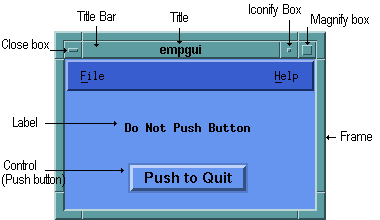
Figure A-2
You can move a window around the screen by using the mouse to drag the window’s title bar. To change its size. you drag on an outside frame bar, or a corner.
Clicking on the top-left corner box will close a window, while the boxes on the top right reduce the window to an icon, or toggle it to occupy the whole screen.
In Motif, controls such as push buttons, which are generally mouse-activated, also have activating keystrokes (or combinations of keys) associated with them. Menu choices have mnemonic single-letter equivalents, which are picked when the menu is visible, and “accelerator” keys, which are active even when it is not. Mnemonics are underlined on the menu or menu bar, while accelerators are displayed after the push button’s label. These keys are associated with a descriptive text on the menu.
Within the frame of a window, you will find static elements (such as labels) as well as active ones (such as data entry fields and controls).
Motif provides several different types of controls. These include
The Empress GUI Builder provides some of the basic Motif
widgets, and also combines them into more powerful complex components.
For example, scroll bars are basic Motif widgets, but they only make sense
in the context of a scrollable window, field, or list. Empress allows you
to specify whether or not a window has scroll bars, and if they are always
to be displayed, or only shown if the contents overflow the window.